Pin Fashion Pro Documentation
Everything you need to install the theme, import the demo, and customize your store — for both the free and pro versions.
Requirements
Before installing, make sure your hosting environment meets the following:
- The latest version of WordPress
- PHP 5.6 or higher
- MySQL 5.7+ or MariaDB 10.4+
Recommended PHP configuration
If demo import fails, it's usually because PHP limits are too low. You can raise these yourself in php.ini, or ask your host to do it for you.
| Directive | Value |
|---|---|
| max_execution_time | 300 |
| memory_limit | 512M |
| post_max_size | 100M |
| upload_max_filesize | 64M |
| max_input_time | 1000 |
Installation
From the WordPress dashboard
- Log in to your WordPress dashboard.
- Go to Appearance › Themes.
- Click Add New Theme, then Upload Theme.
- Choose
pin-fashion.zipand click Install Now. - Once installed, click Activate.
- Click Get Started in the setup notice to continue.
Manual installation via FTP
- Unzip
pin-fashion.zipon your computer. - Connect to your server with an FTP client and open /wp-content/themes/.
- Upload the unzipped theme folder there.
- Go to Appearance › Themes and activate the theme.
Set a static front page
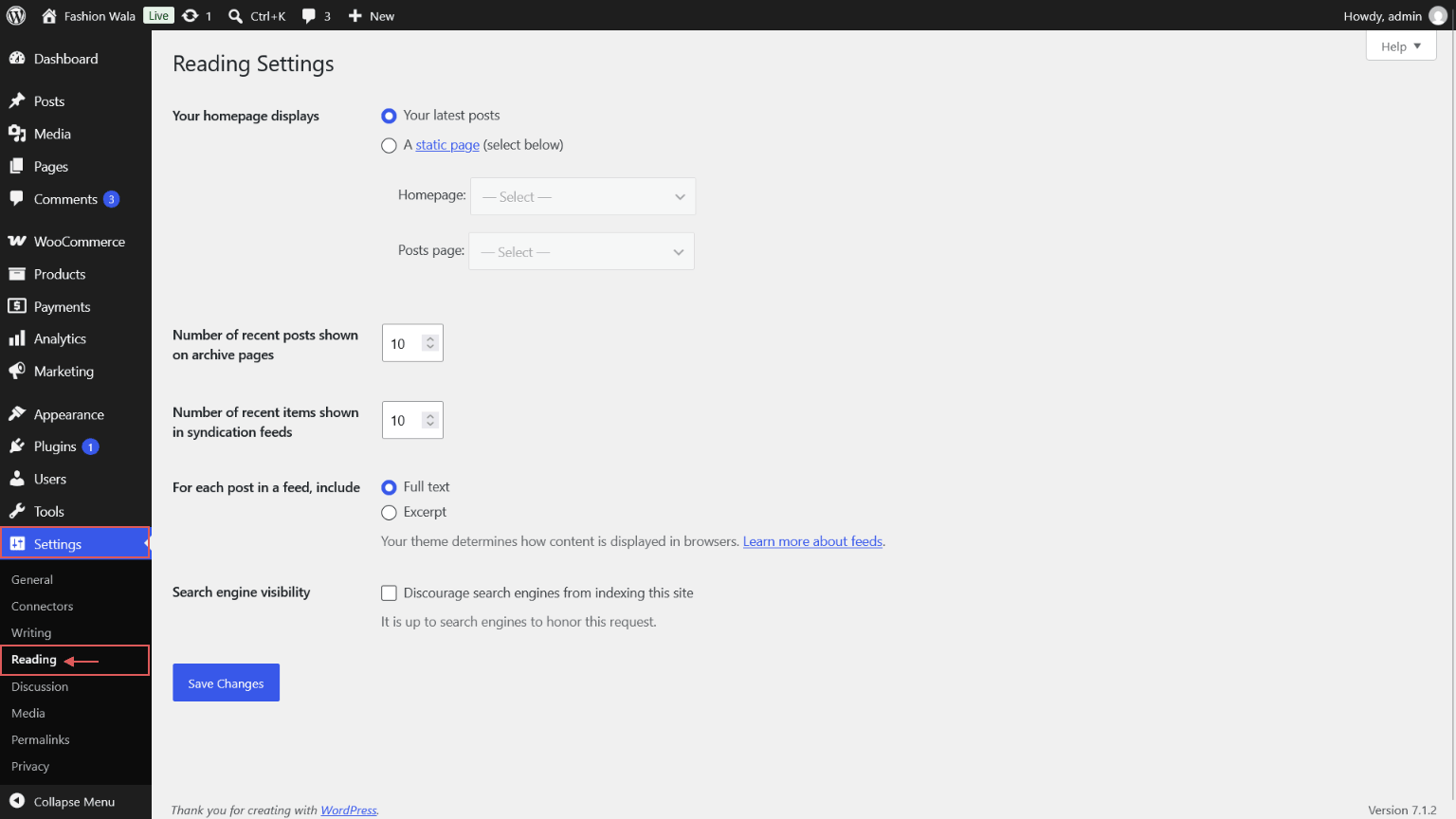
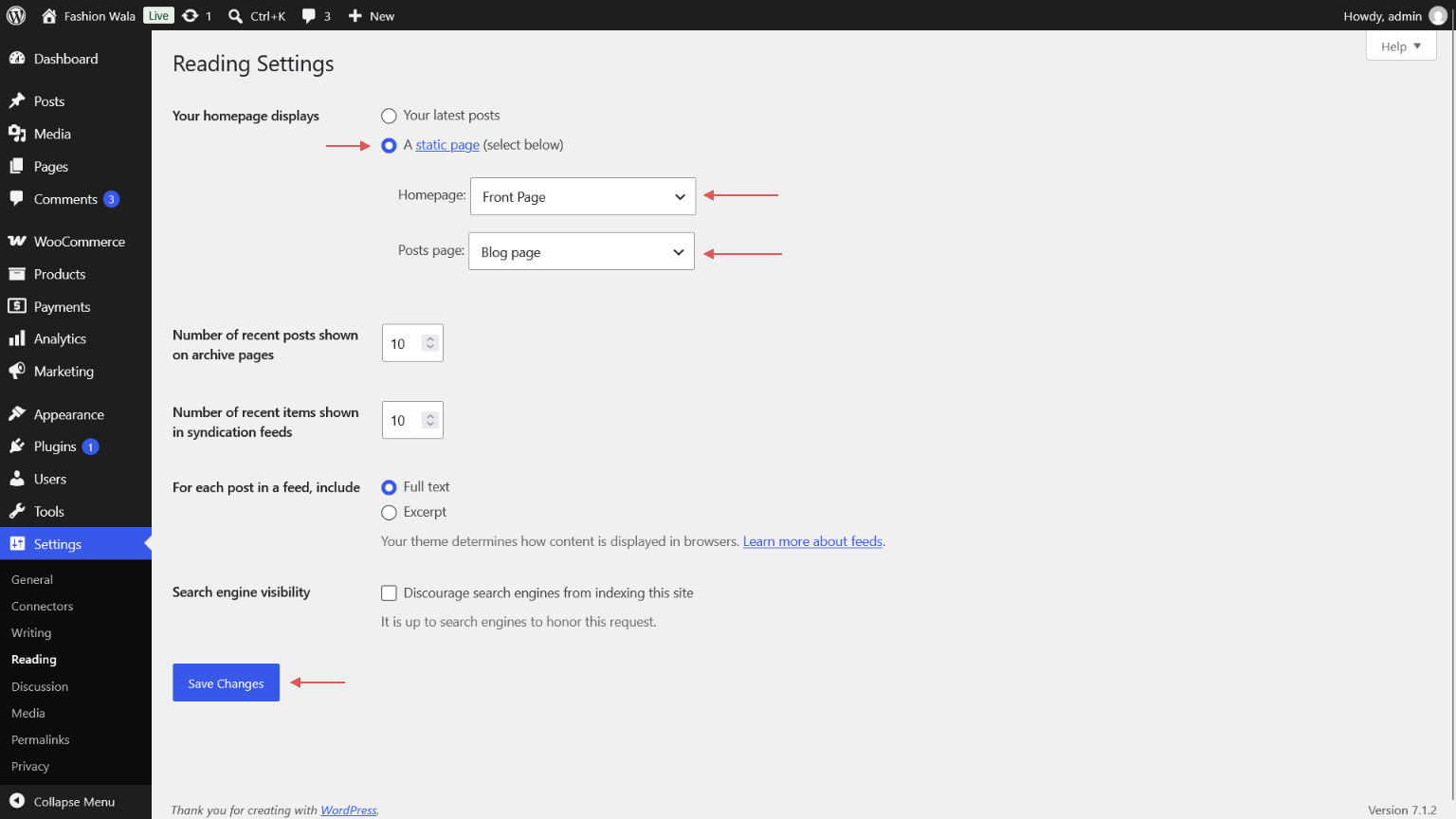
By default, WordPress shows your latest posts on the home page. To use a specific page as your home page instead, go to Settings › Reading.
Under Your homepage displays, select A static page. Then choose the page you want from the Homepage dropdown. You can also pick a Posts page to show your blog posts. Click Save Changes when you're done.
Use a page template
Page templates change the layout of a single page or post. To apply one, open the page or post in the editor. In the right sidebar, open the Page (or Post) tab and click the current template name next to Template. Choose a template from the list, then click Save or Update.
The theme includes the following templates:
- Blank: Shows only your content, without the header and footer. Useful for coming soon pages or fully custom layouts. Available for pages and posts.
- Full Width: Stretches the content across the full width of the screen with no sidebar. Available for pages and posts.
- Landing Page: A focused layout for marketing or promotional pages, such as a product launch or signup page. Available for pages only.
- No Banner: Uses the default layout but hides the page title banner at the top. Available for pages and posts.
To return to the standard layout, select the Default template and save the page again.
Use patterns
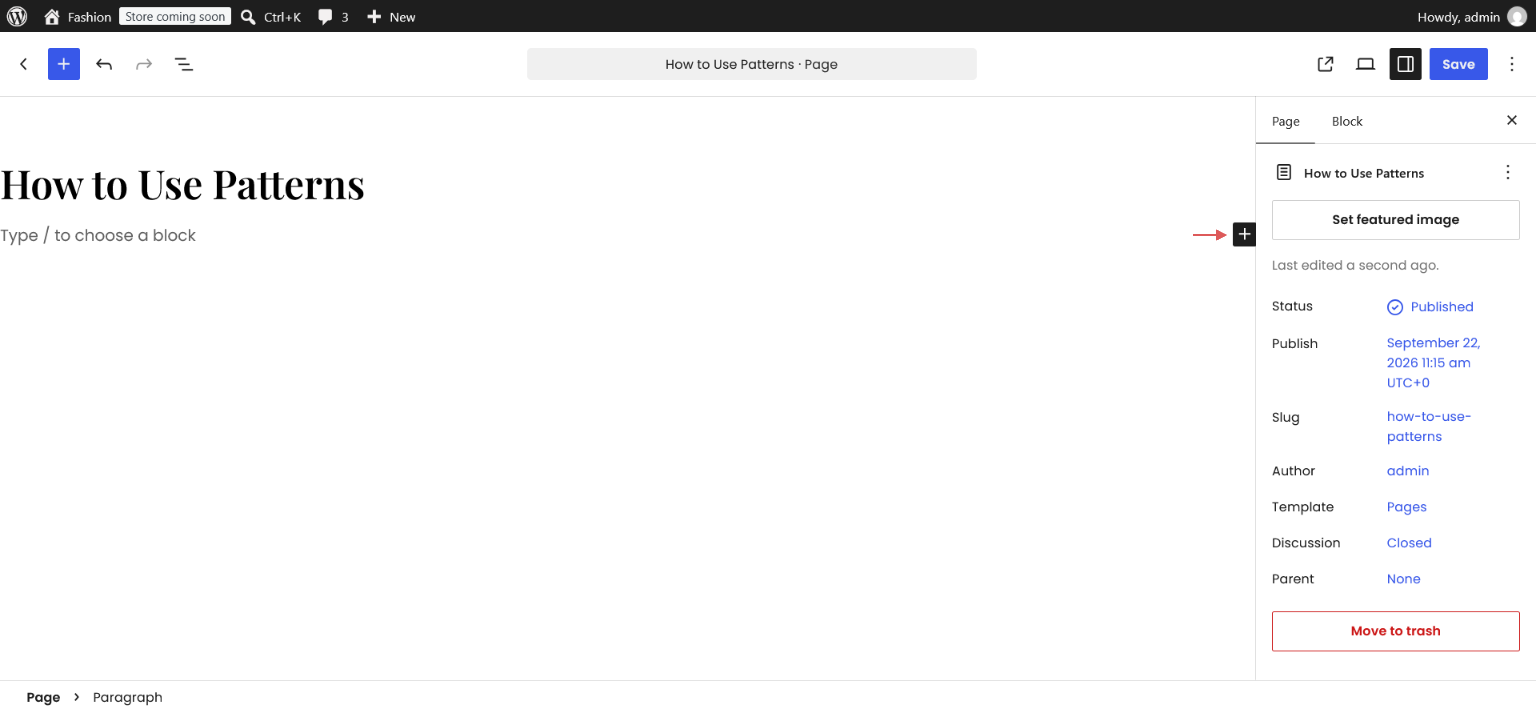
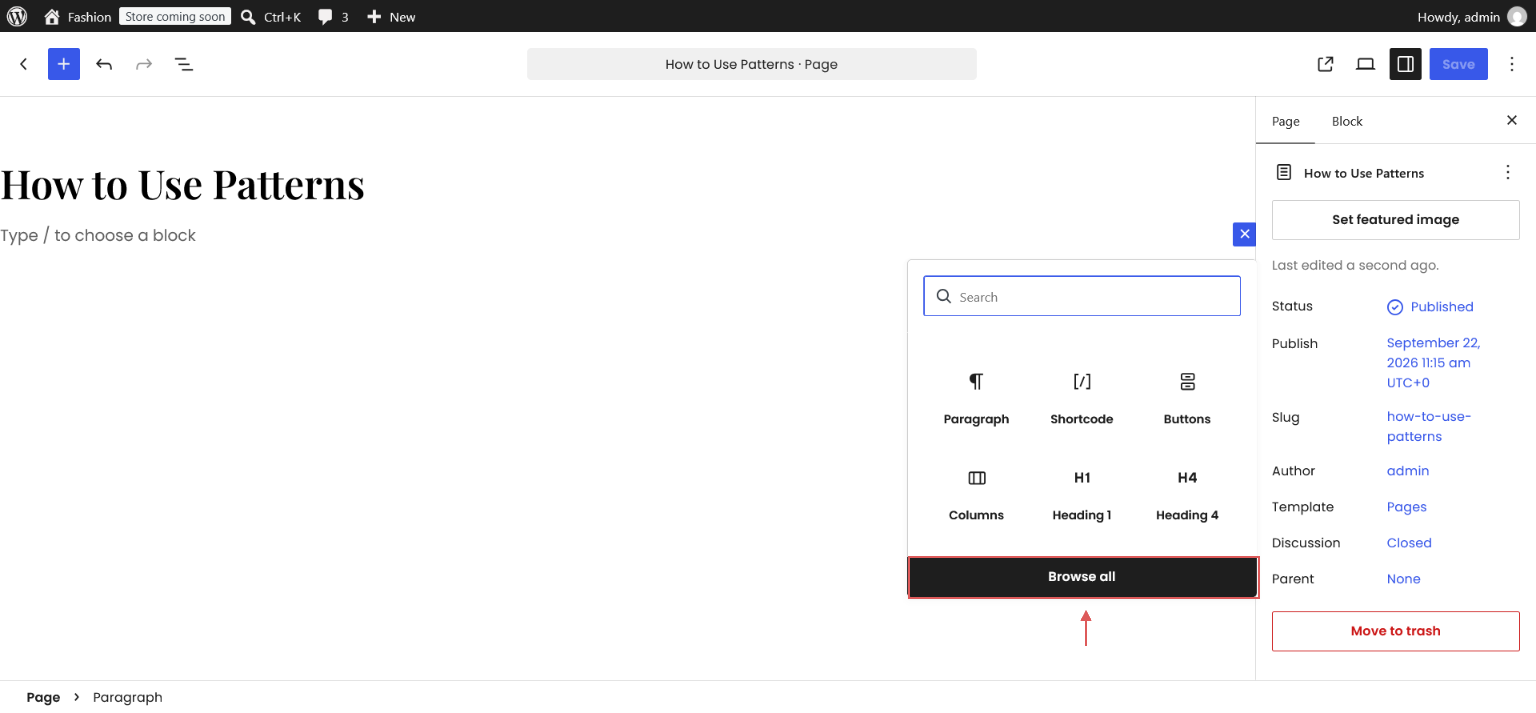
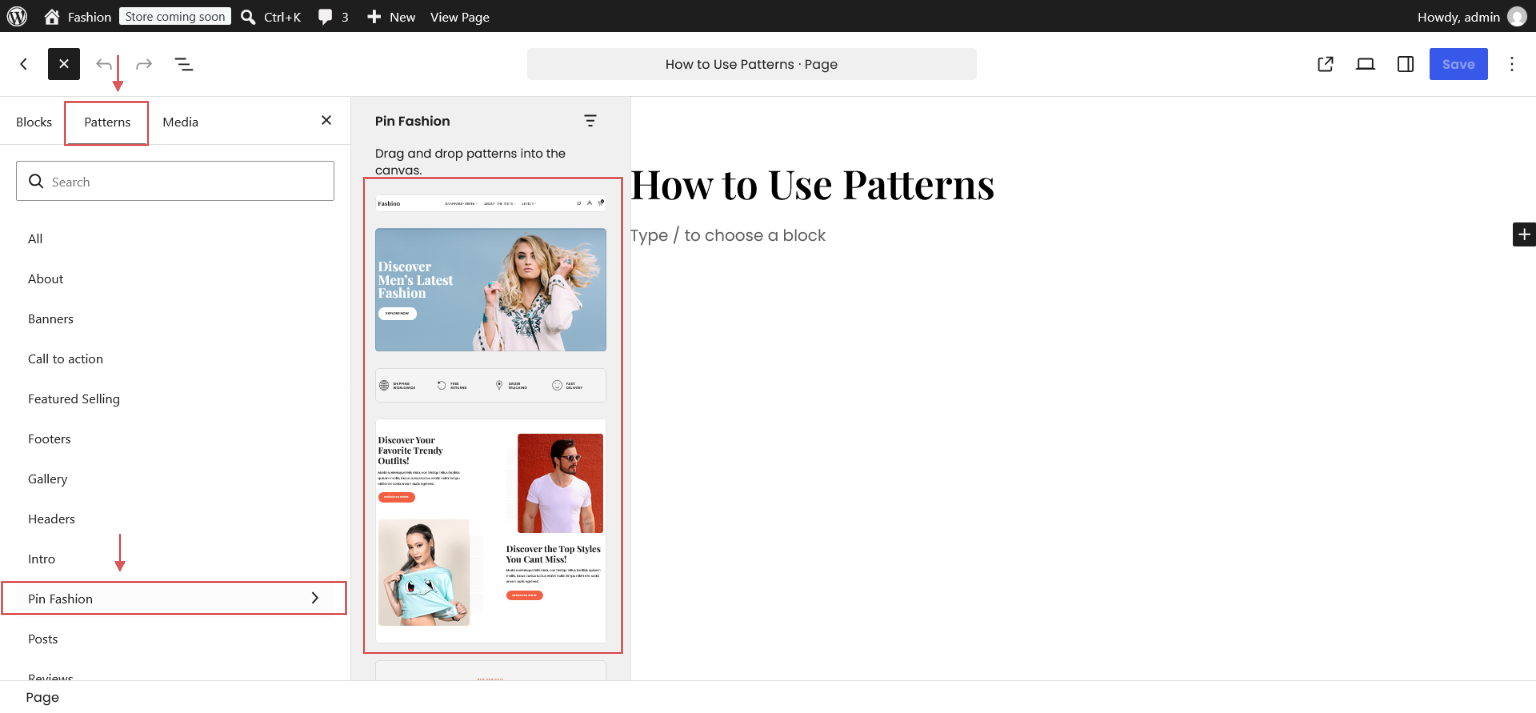
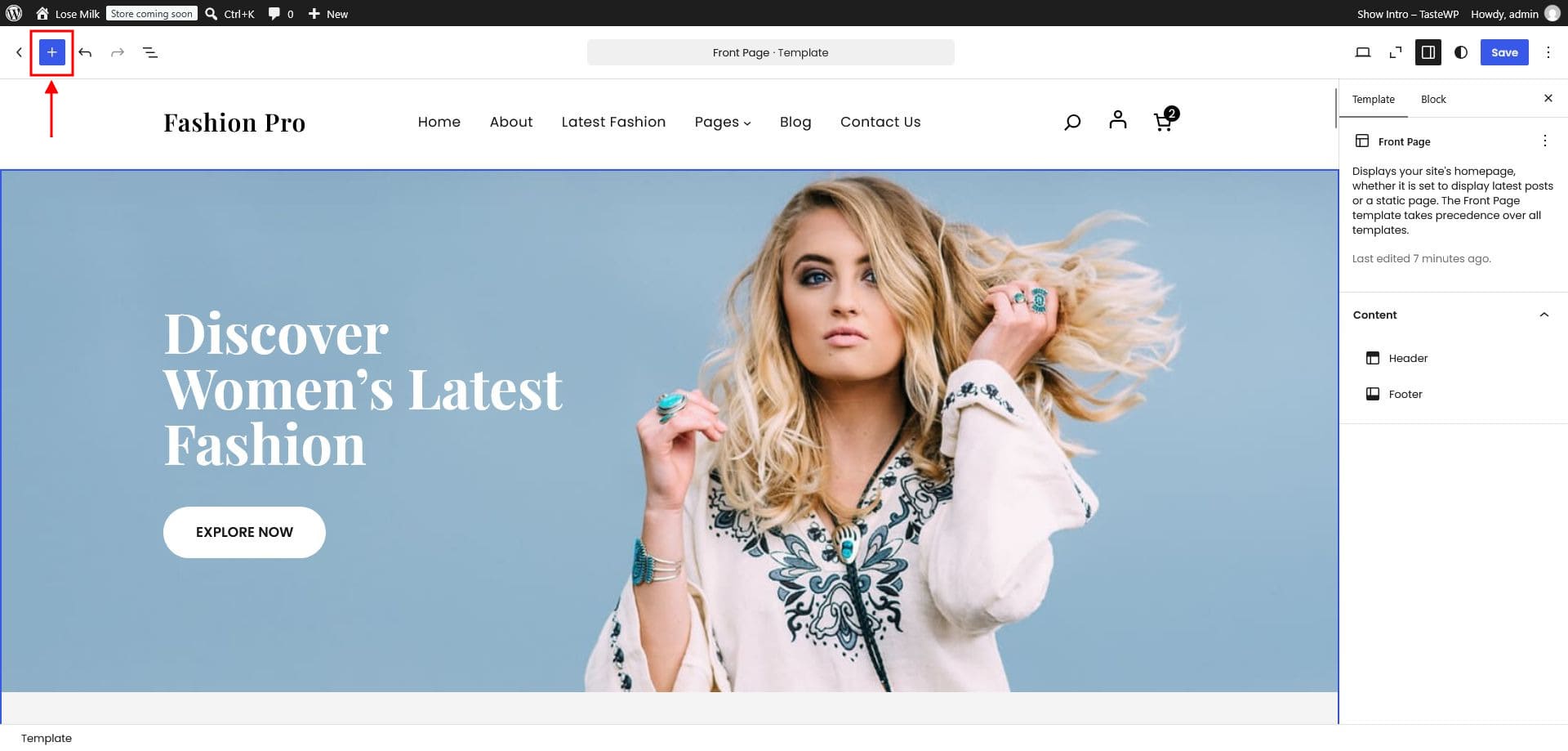
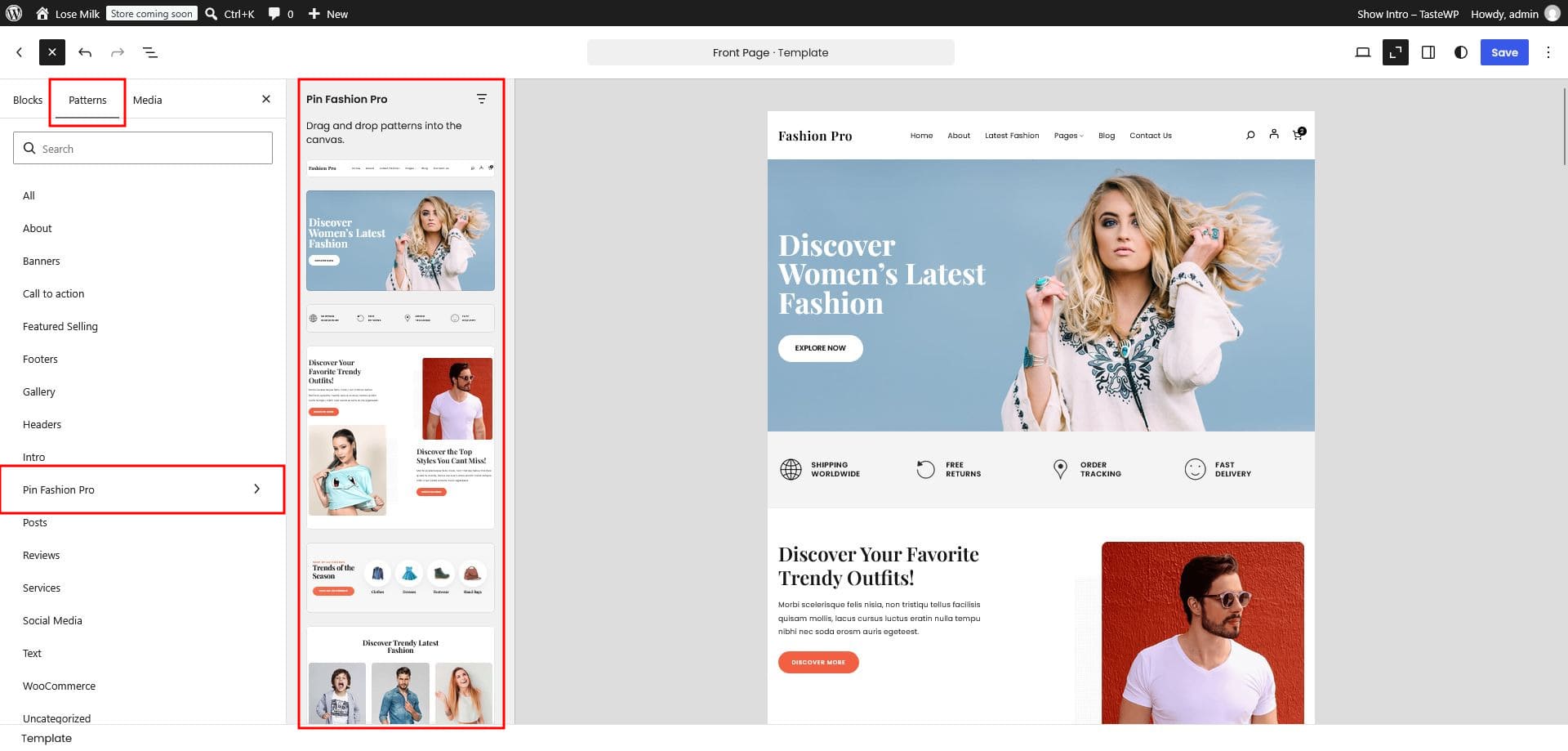
- Click the Plus (+) icon in the editor, then open the Patterns tab.
- Select Pin Fashion from the list to see the theme's home patterns.
- Insert any pattern into your page.
Color variations
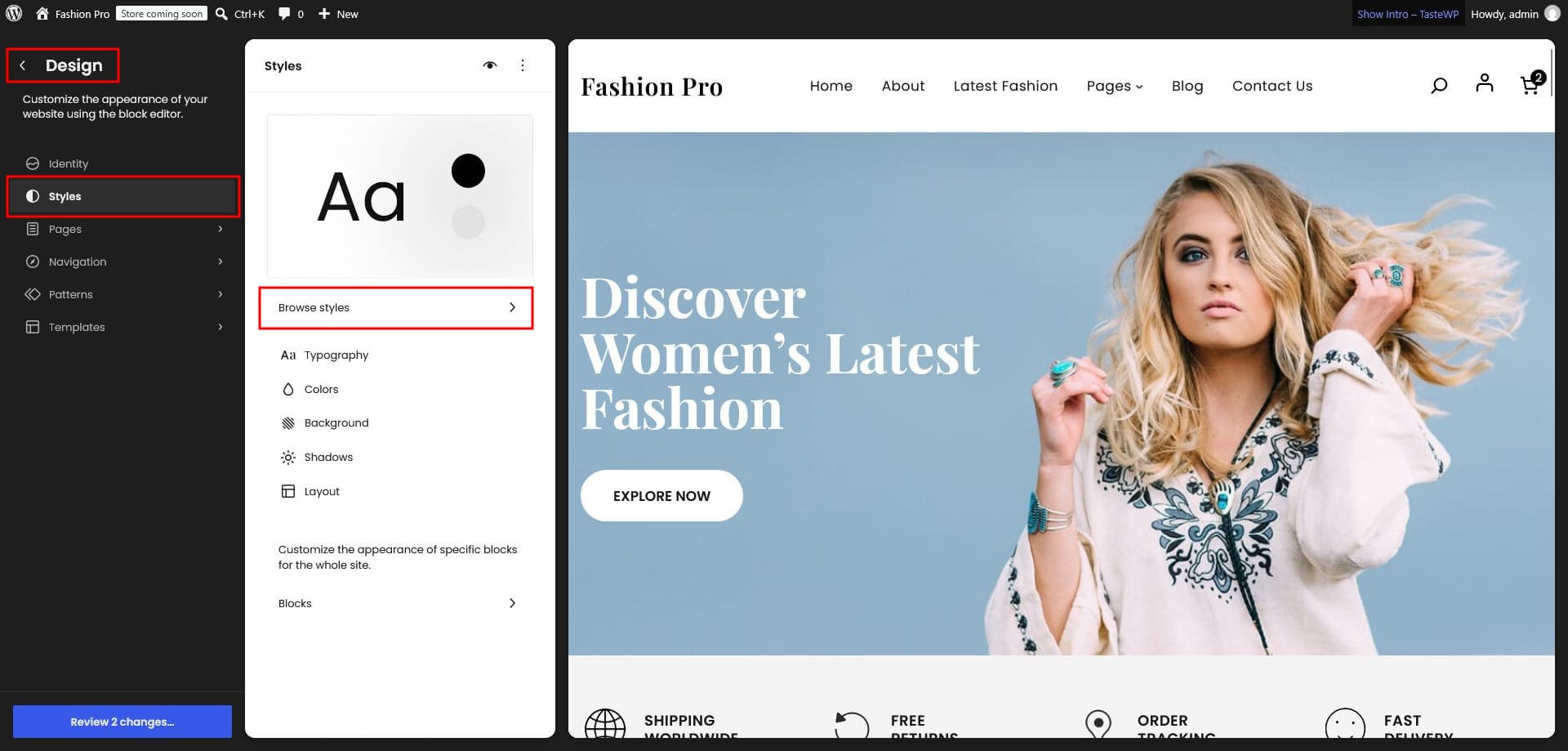
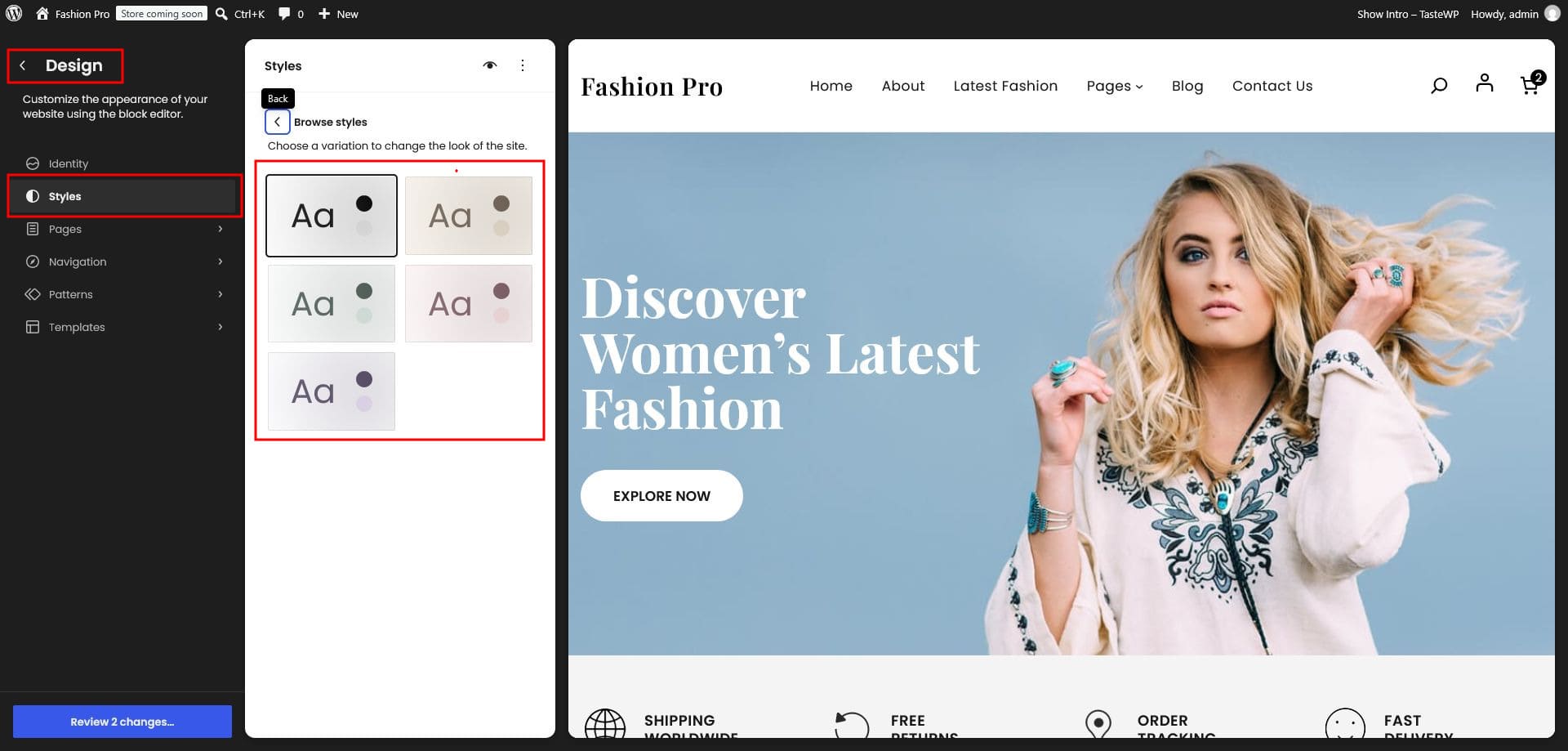
- Go to Appearance › Editor › Styles.
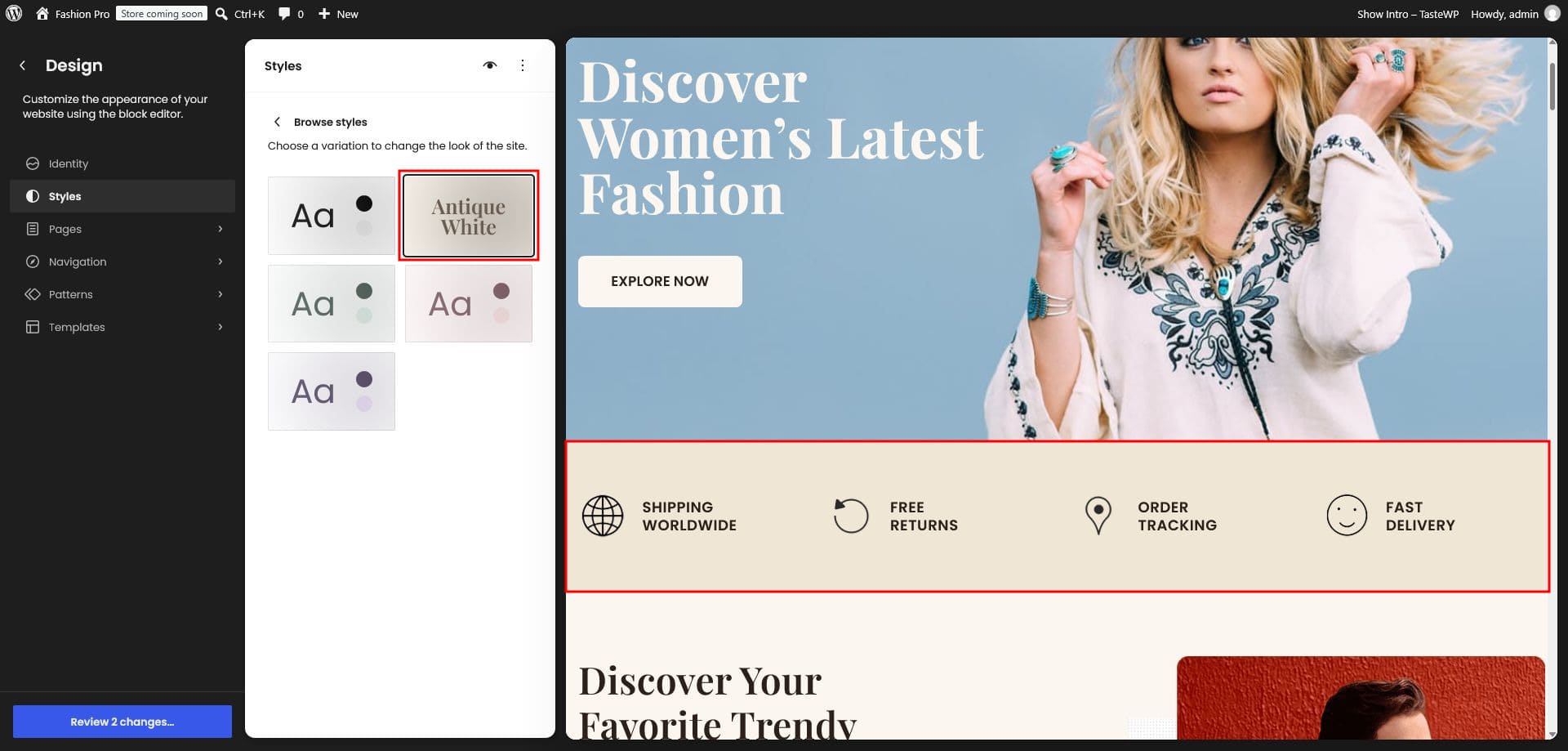
- Choose a color variation to change your theme's overall palette.
Header & footer templates
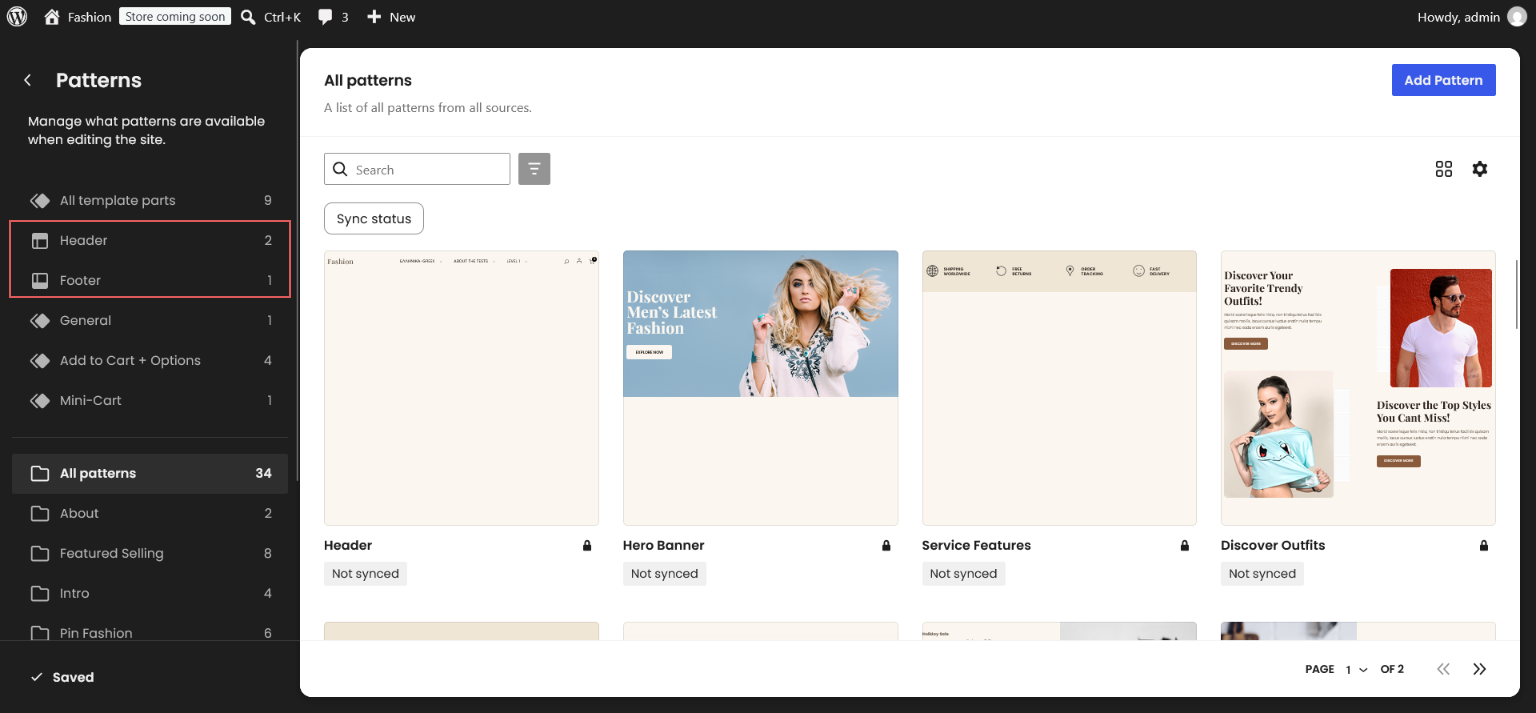
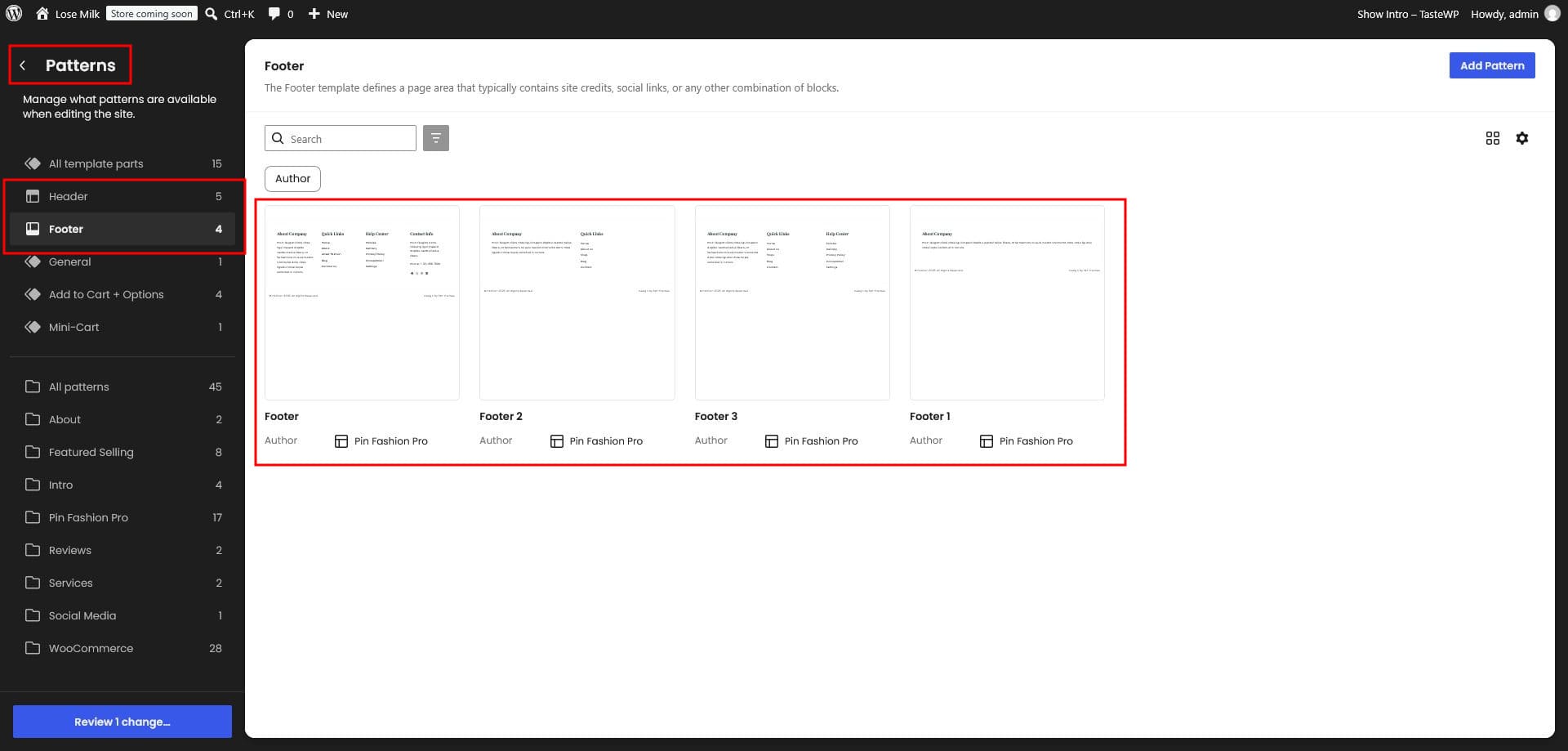
Manage your header at Appearance › Editor › Patterns › Header and your footer at Appearance › Editor › Patterns › Footer. Click either one to start editing.
Requirements
The pro theme requires a slightly newer PHP version:
- The latest version of WordPress
- PHP 7.4 or higher
- MySQL 5.7+ or MariaDB 10.4+
Recommended PHP configuration
If demo import fails, raise these limits in php.ini or ask your host to adjust them.
| Directive | Value |
|---|---|
| max_execution_time | 300 |
| memory_limit | 512M |
| post_max_size | 100M |
| upload_max_filesize | 64M |
| max_input_time | 1000 |
Installation
From the WordPress dashboard
- Log in to your WordPress dashboard.
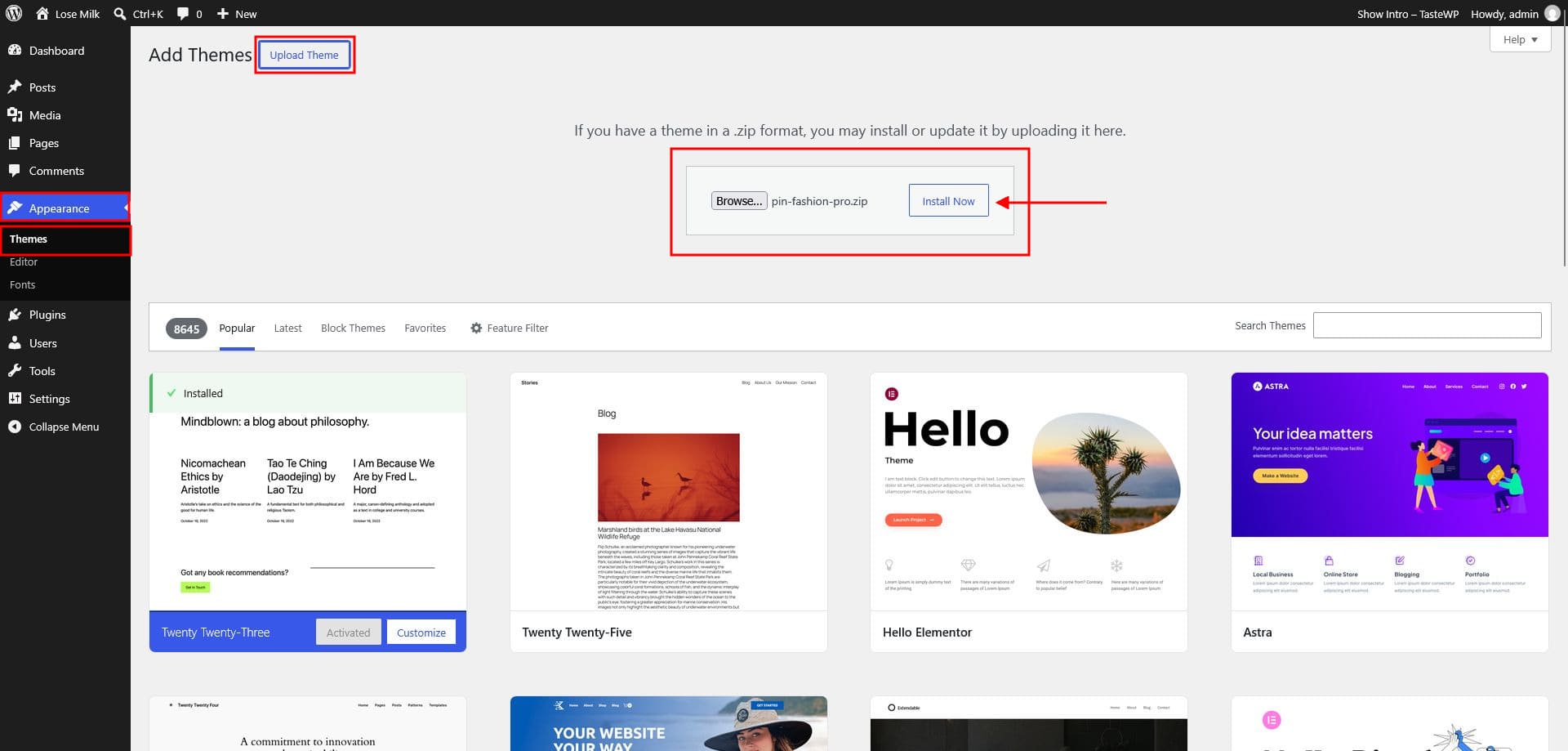
- Go to Appearance › Themes.
- Click Add New Theme, then Upload Theme.
- Choose
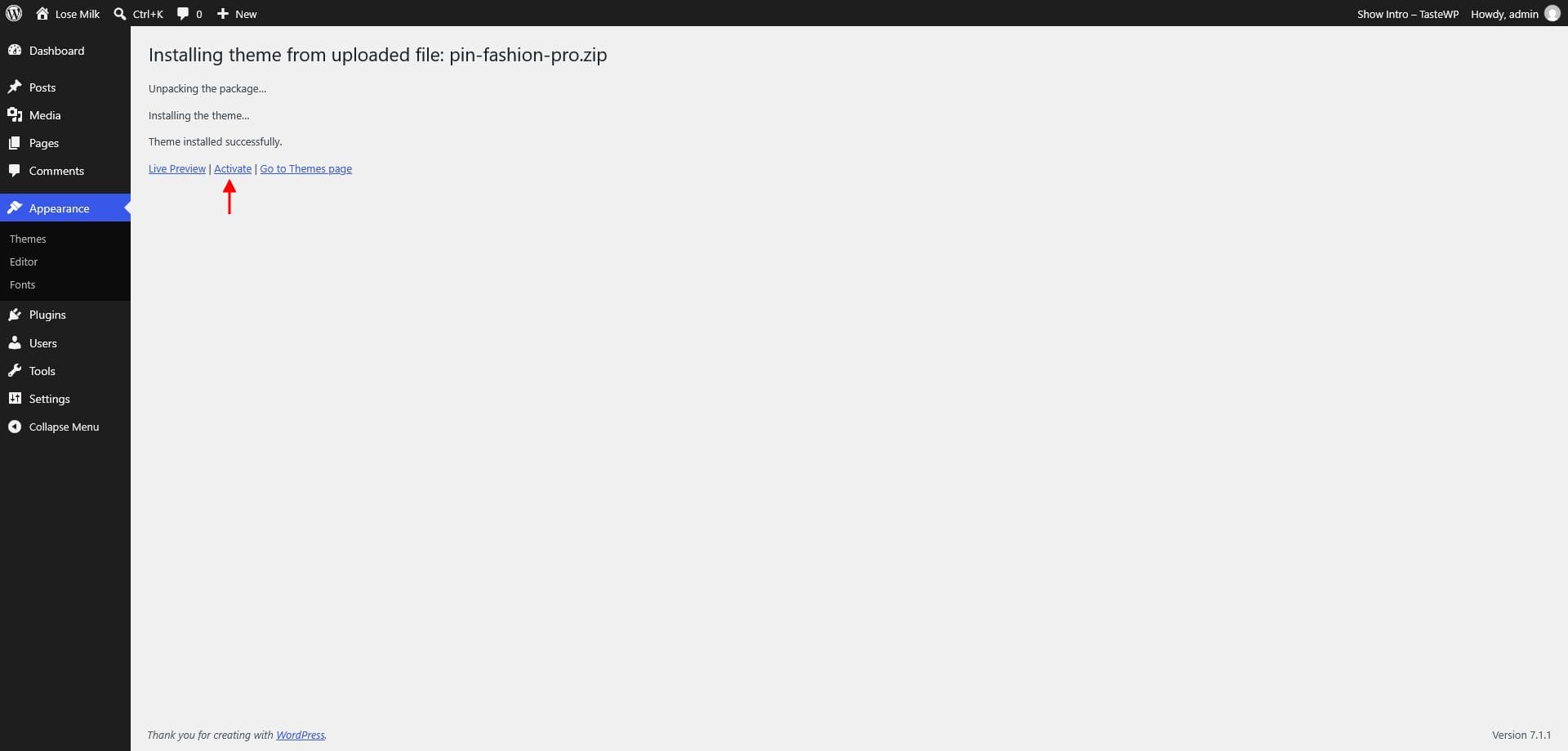
pin-fashion-pro.zipand click Install Now. - Once installed, click Activate.
- Click Get Started in the setup notice to continue.
Manual installation via FTP
- Unzip
pin-fashion-pro.zipon your computer. - Connect to your server with an FTP client and open /wp-content/themes/.
- Upload the unzipped theme folder there.
- Go to Appearance › Themes and activate the theme.
Demo import
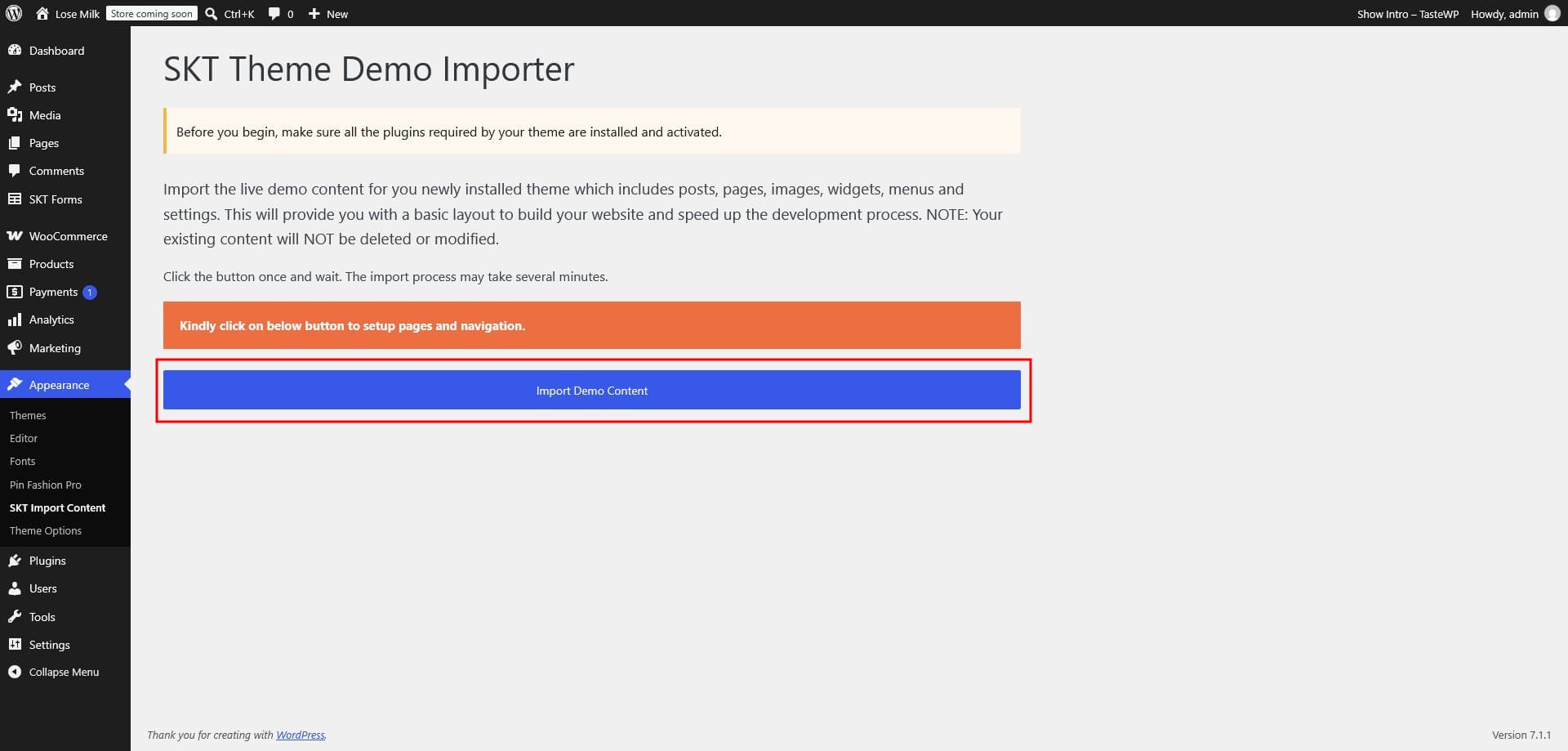
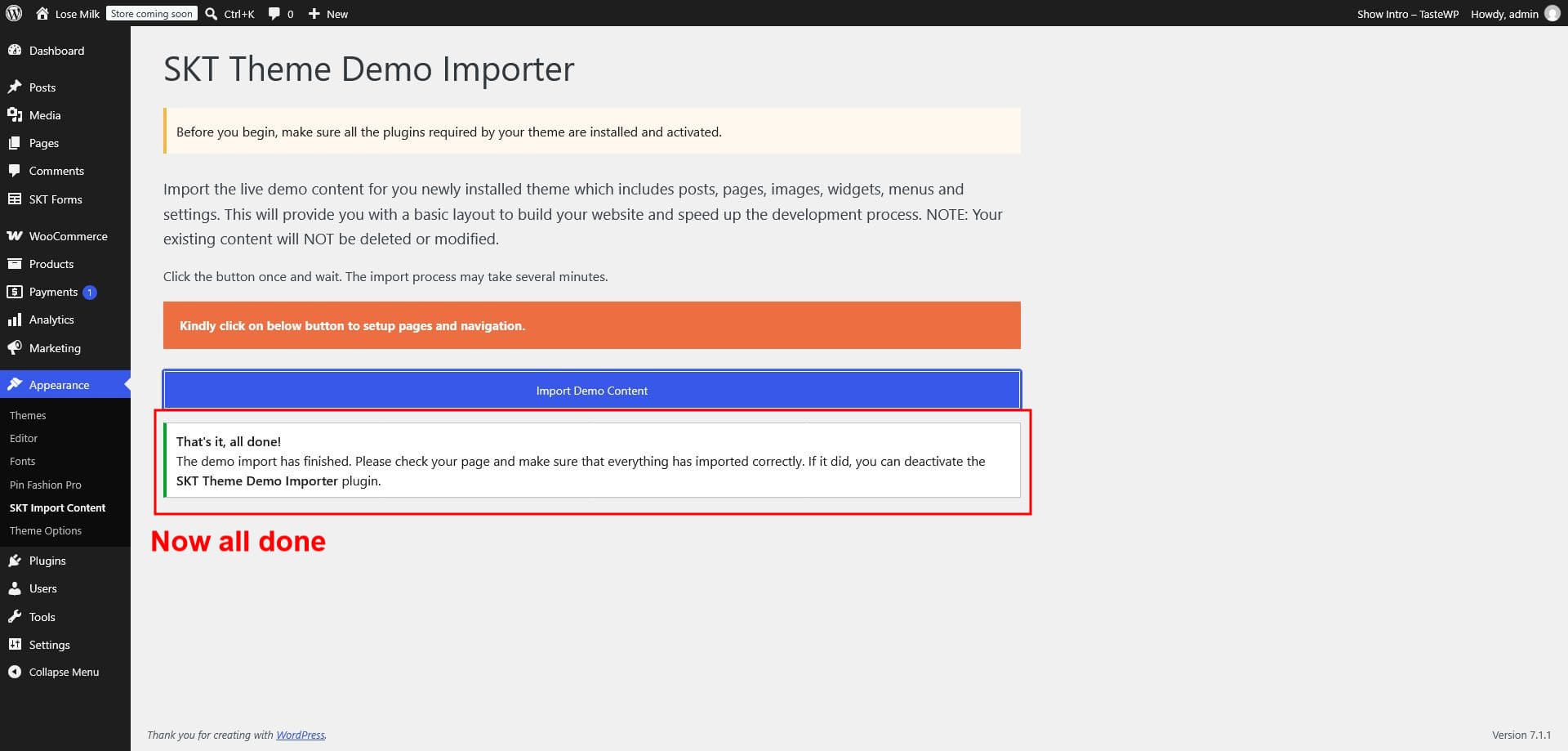
Import all demo content in one click to get a site that matches the live preview.
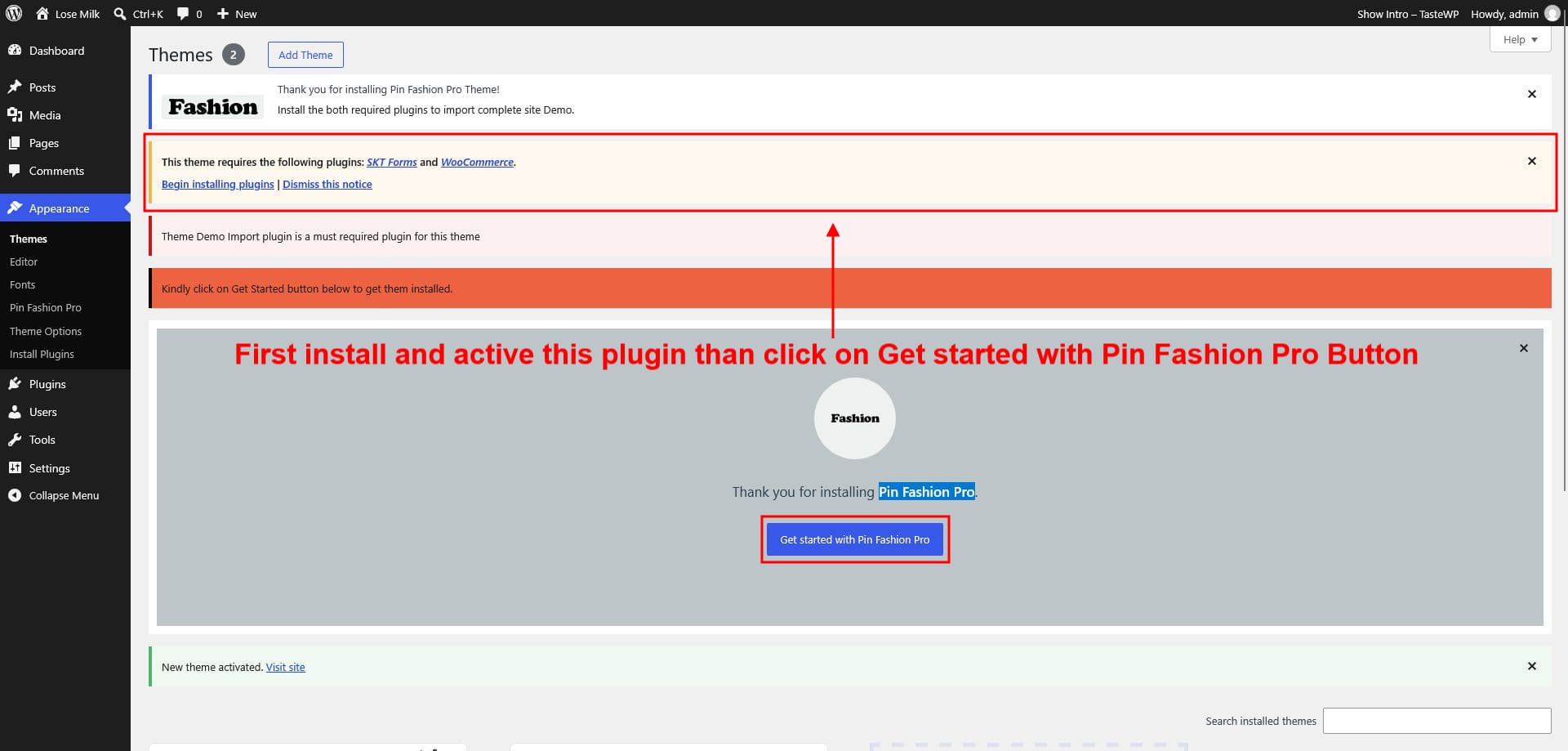
Before you import: install and activate every required plugin for the theme. Demo content won't load correctly otherwise.
- After activating the theme, the setup screen appears.
- Click Begin installing plugins and install and activate every listed plugin.
- Return to the setup screen and run the one-click demo import.
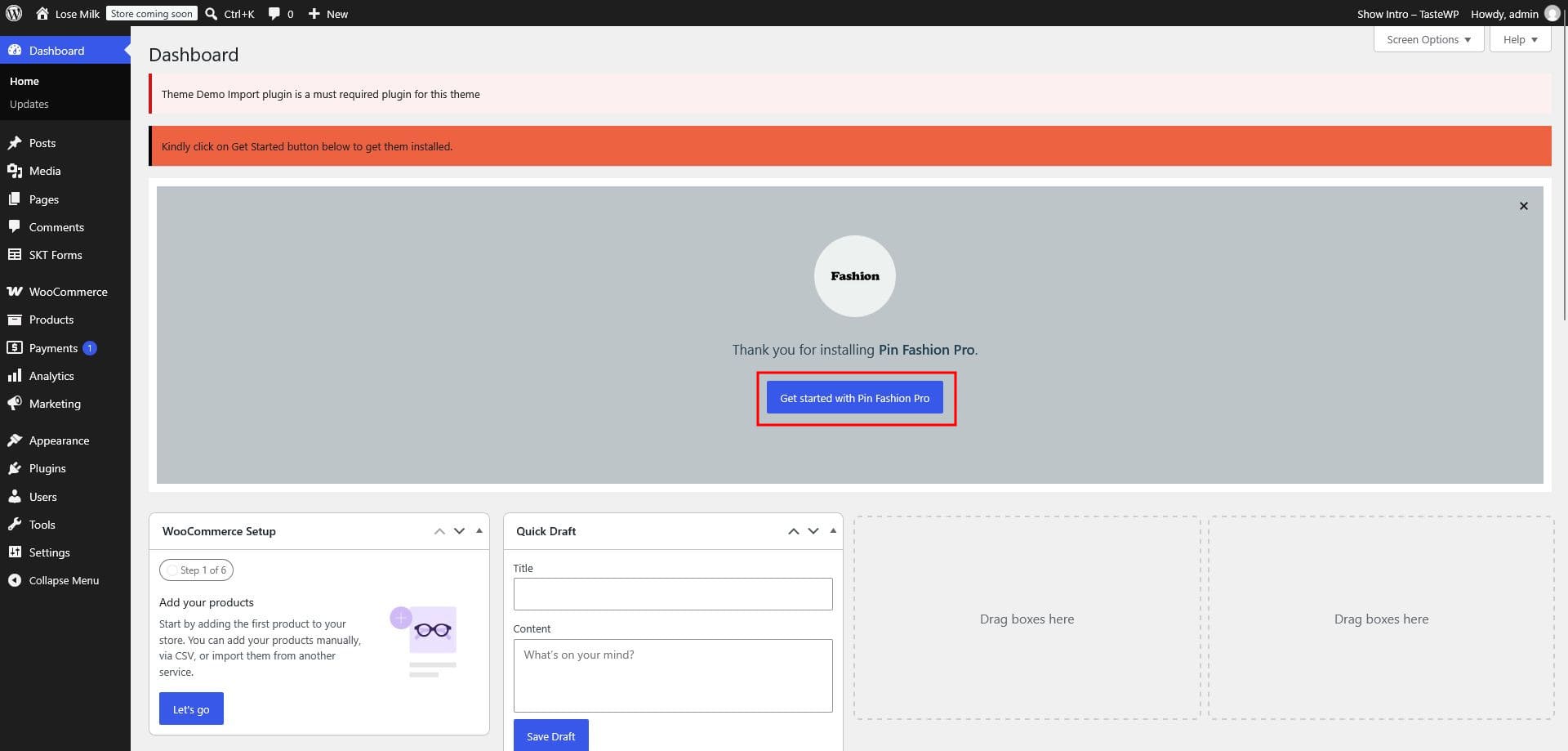
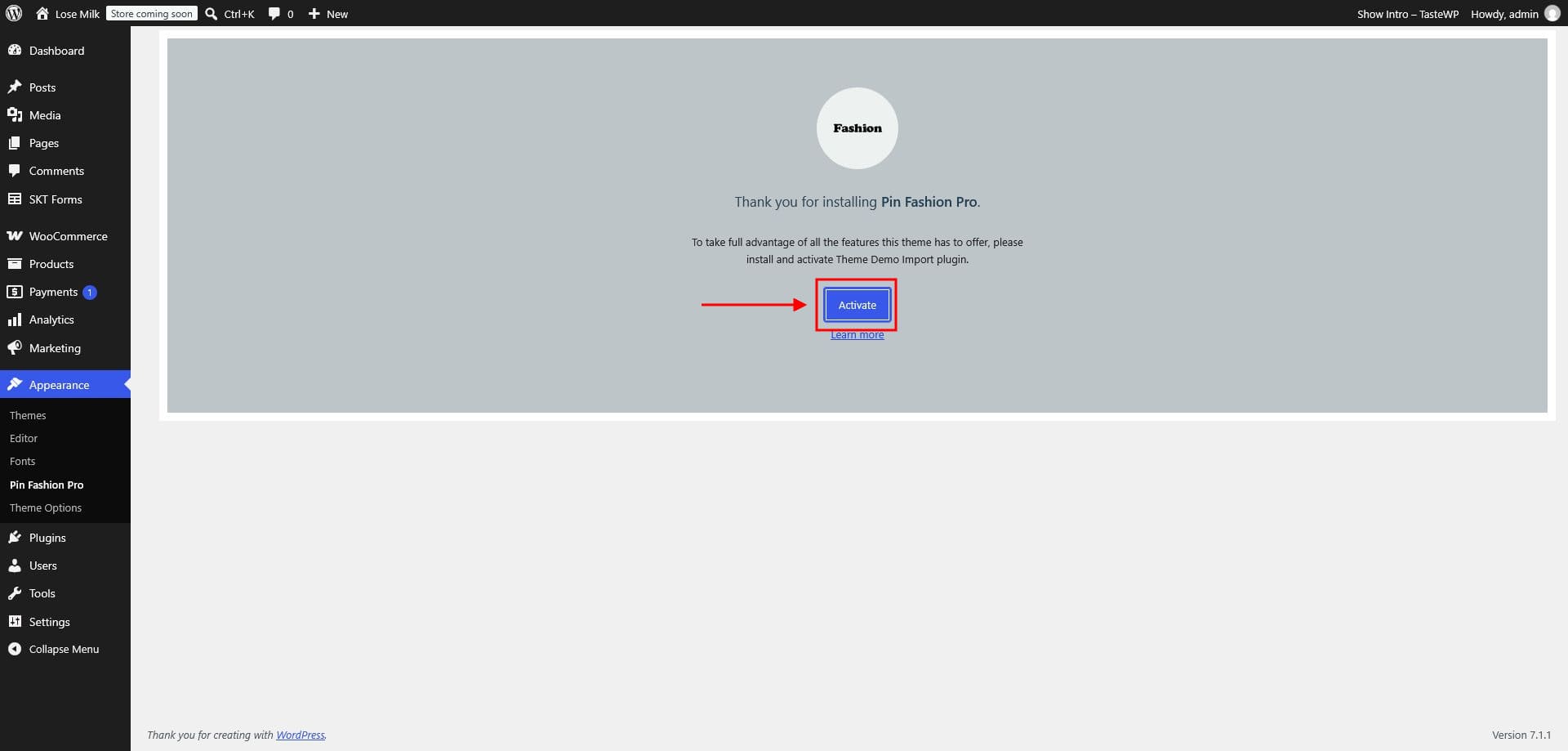
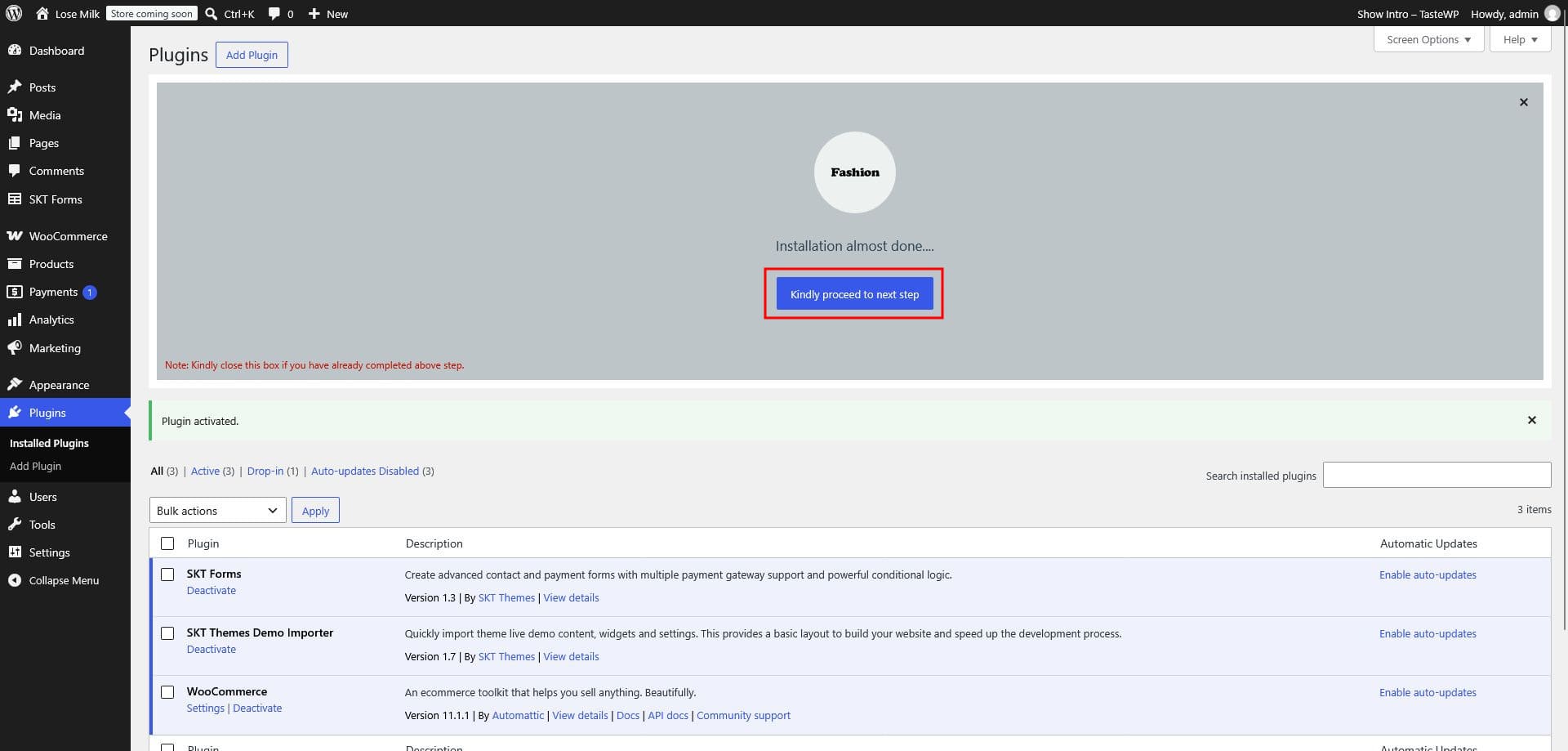
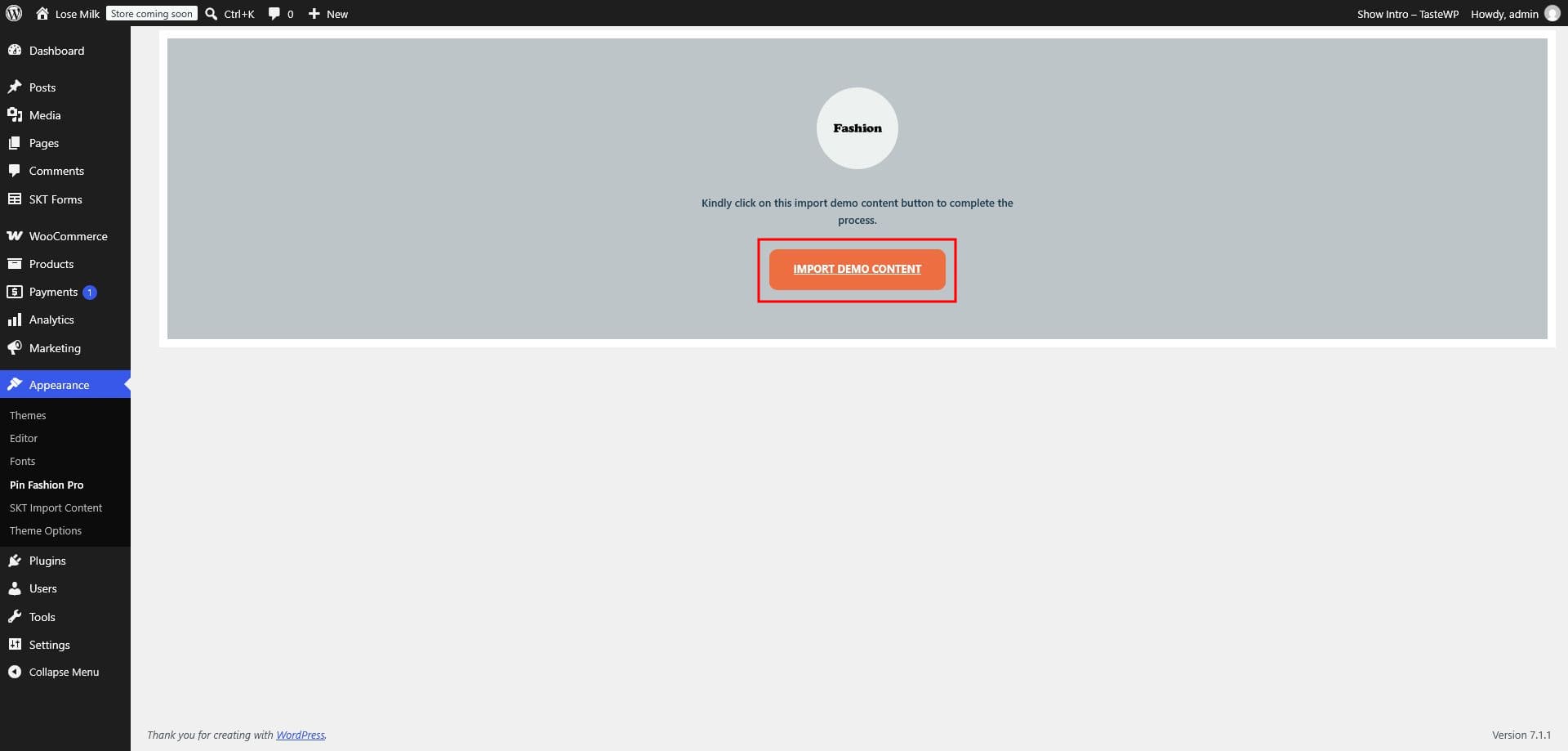
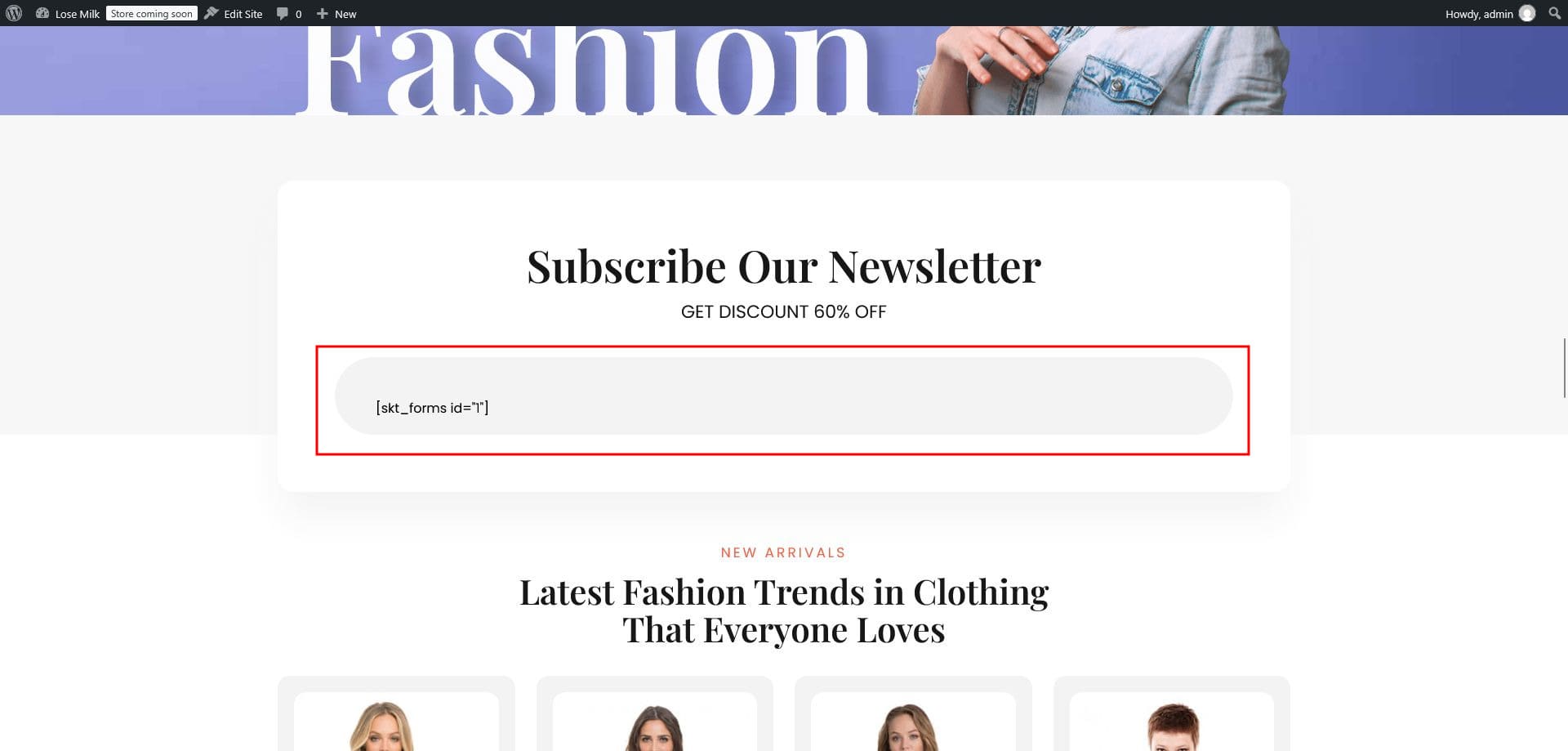
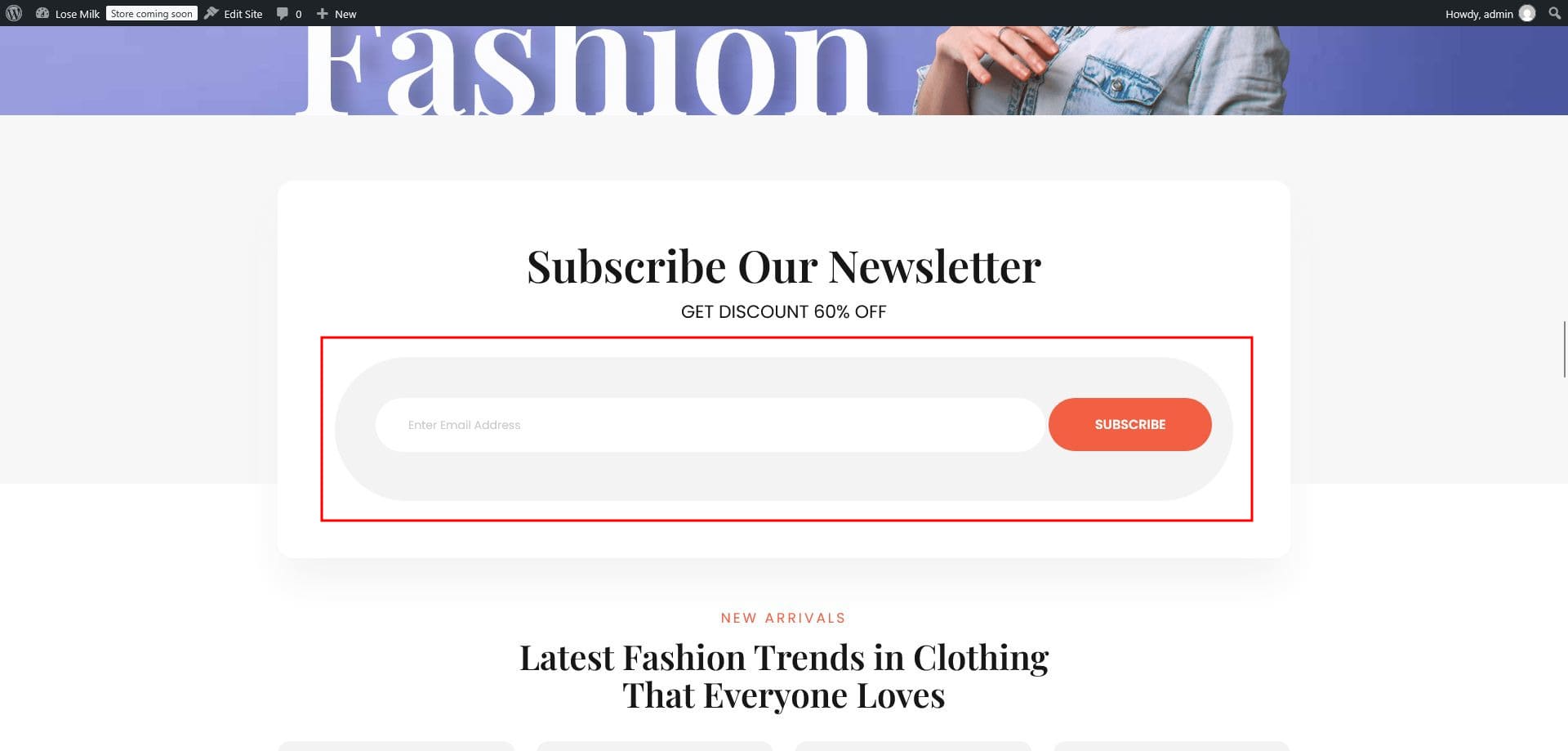
If a section such as Subscribe to our newsletter looks empty after import, open Appearance › Editor, make any small change to the home page, and click Save. The section will then display correctly.
Video walkthrough
Edit the home page
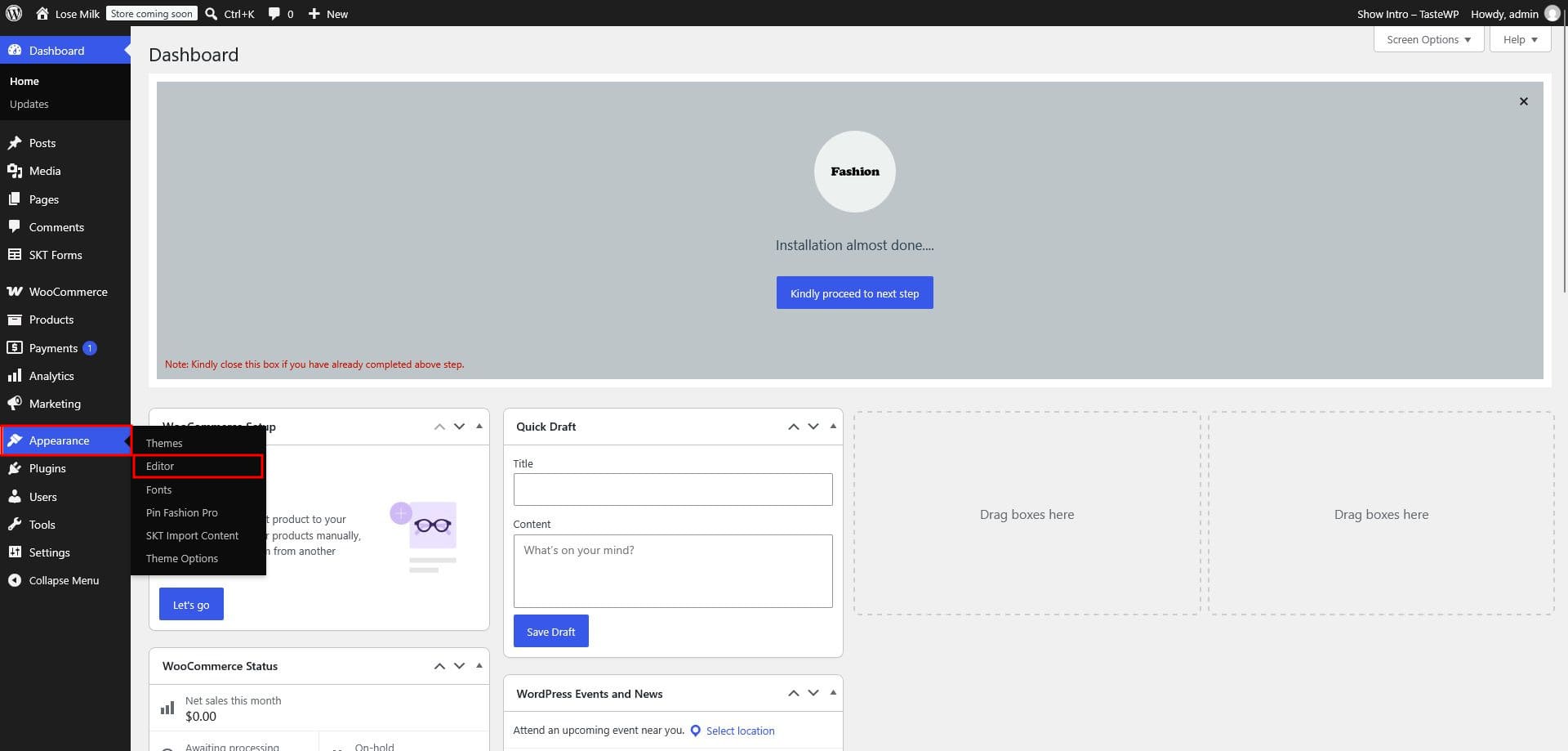
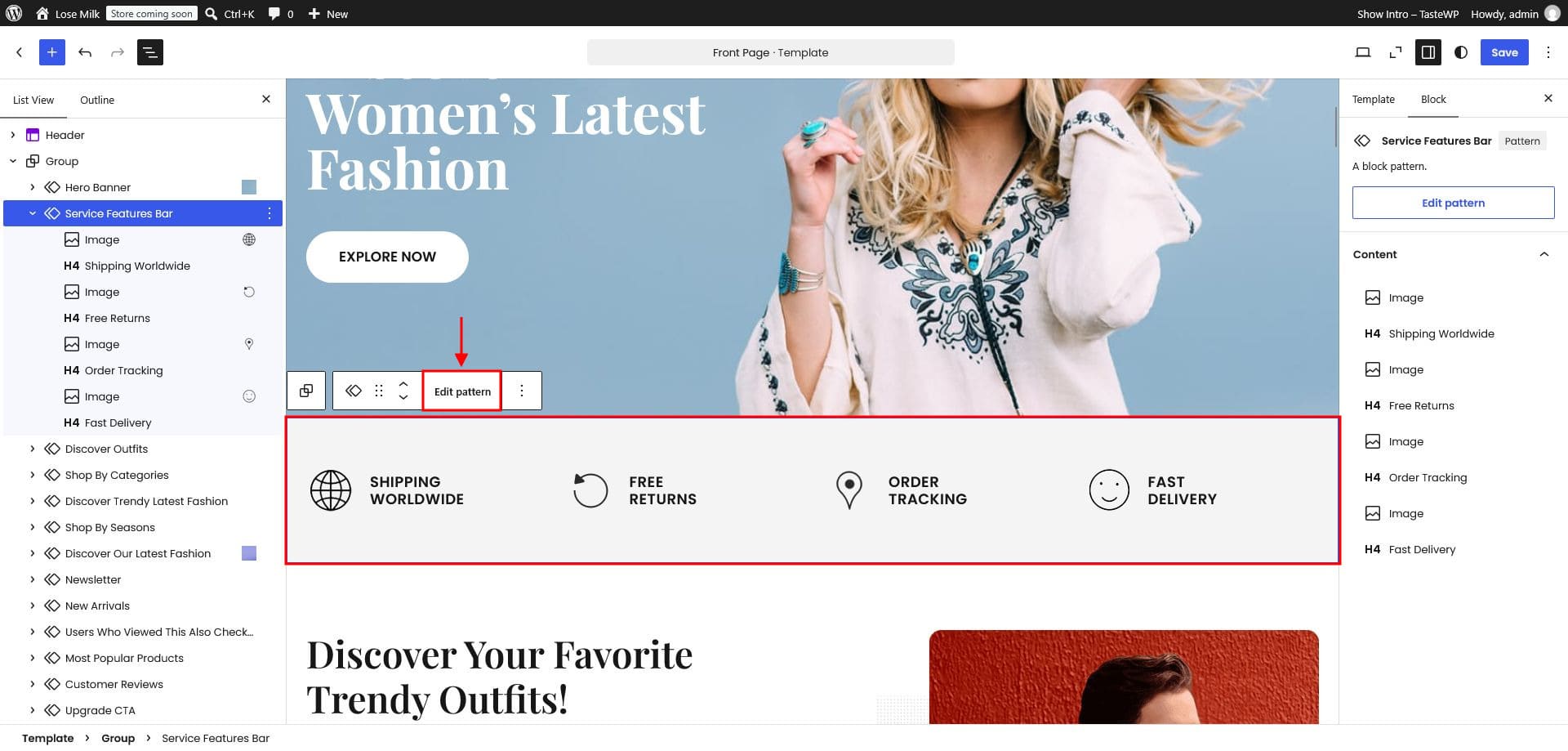
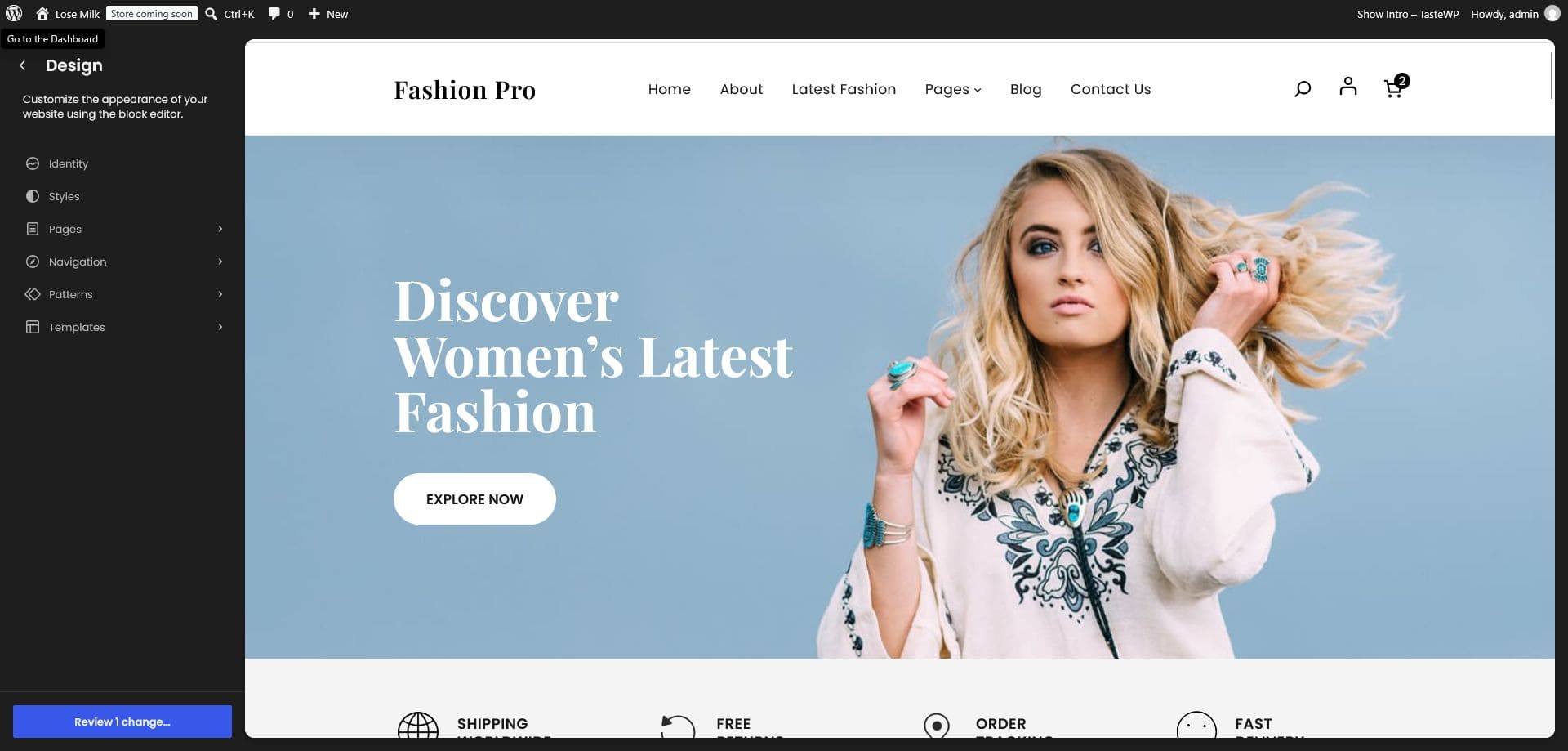
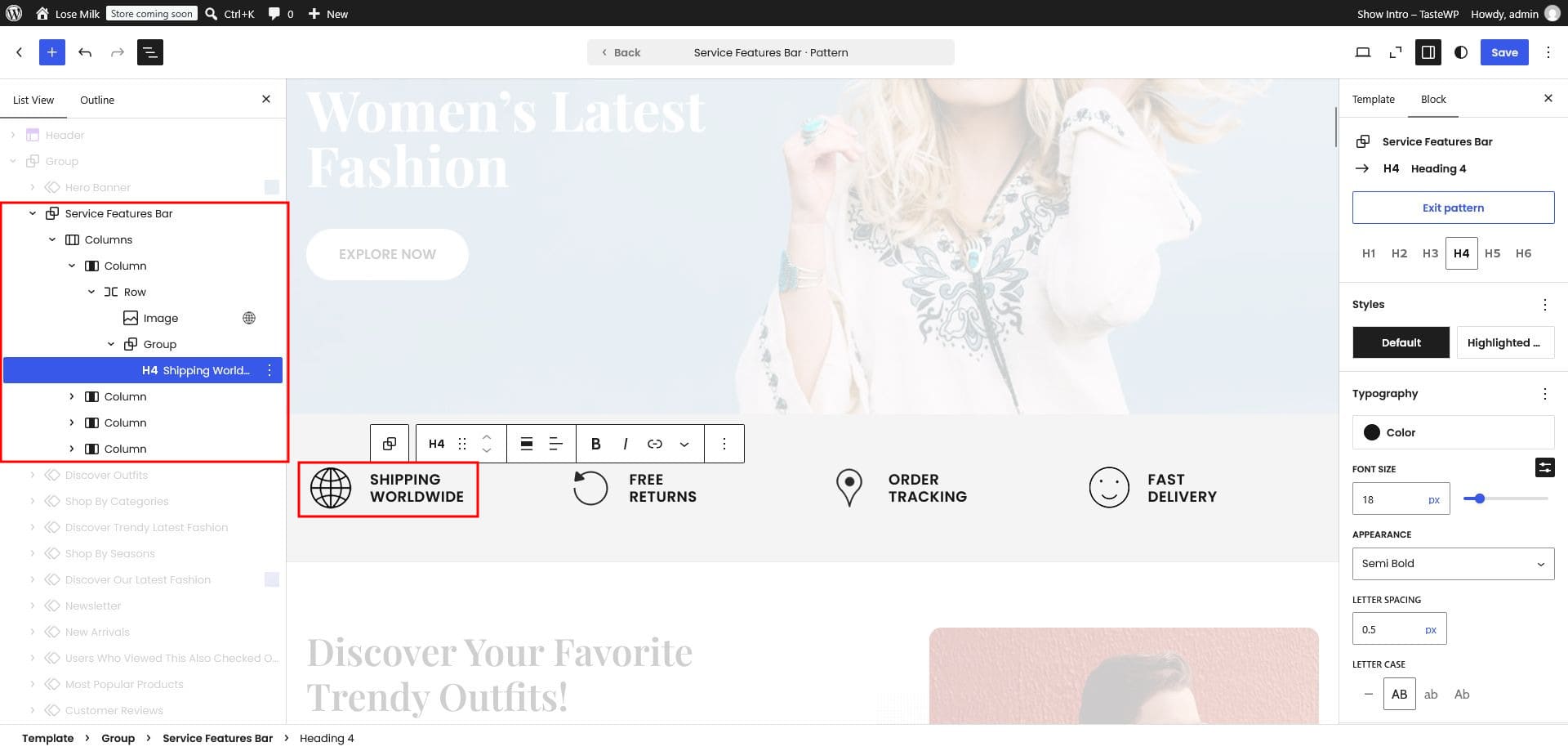
Open Appearance › Editor to edit your home page in the block editor.
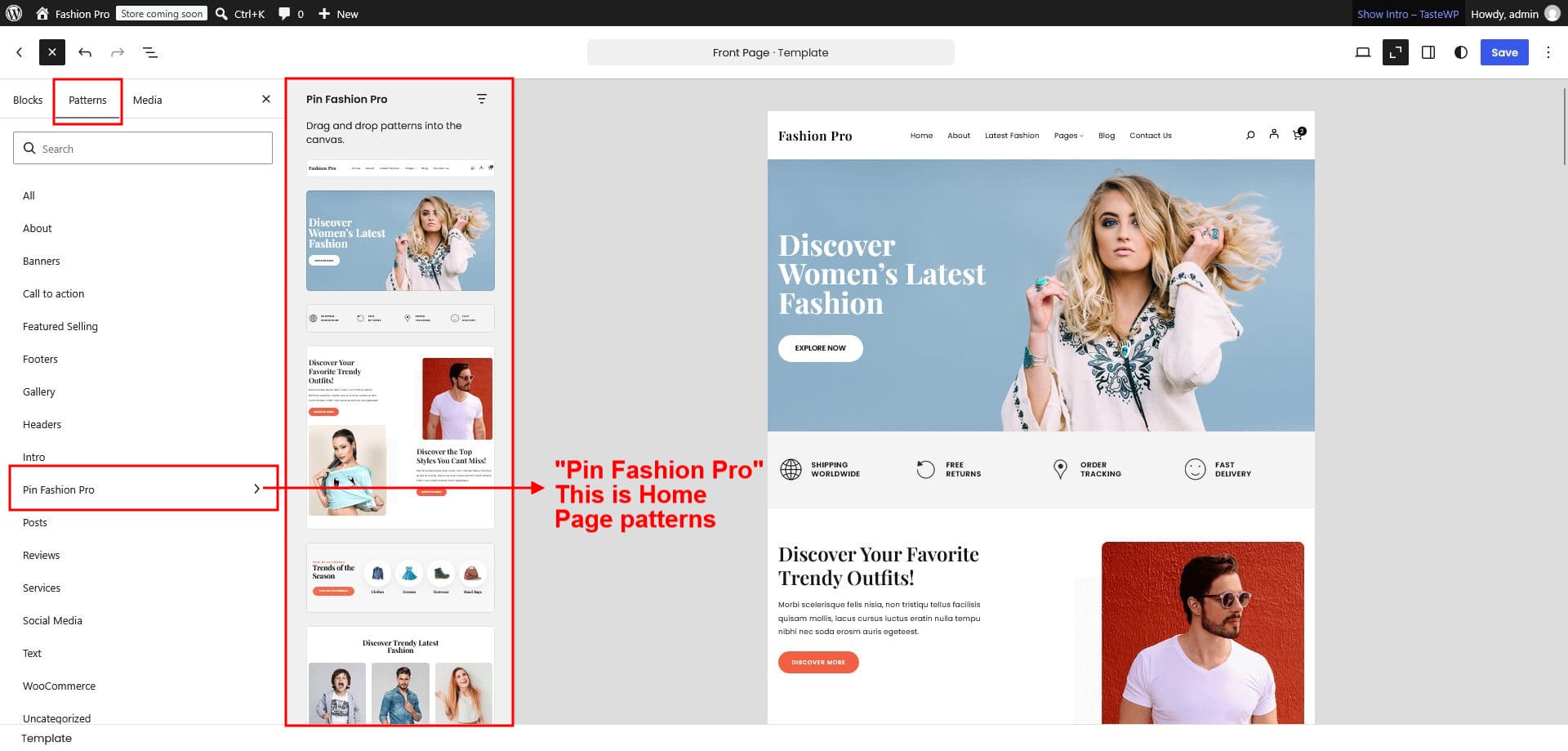
Add patterns
- Click the Plus (+) icon in the editor.
- In the panel that opens, select Pin Fashion Pro from the left menu.
- Every theme pattern is listed here — insert any of them into your page.
Header & footer
Edit the header and footer
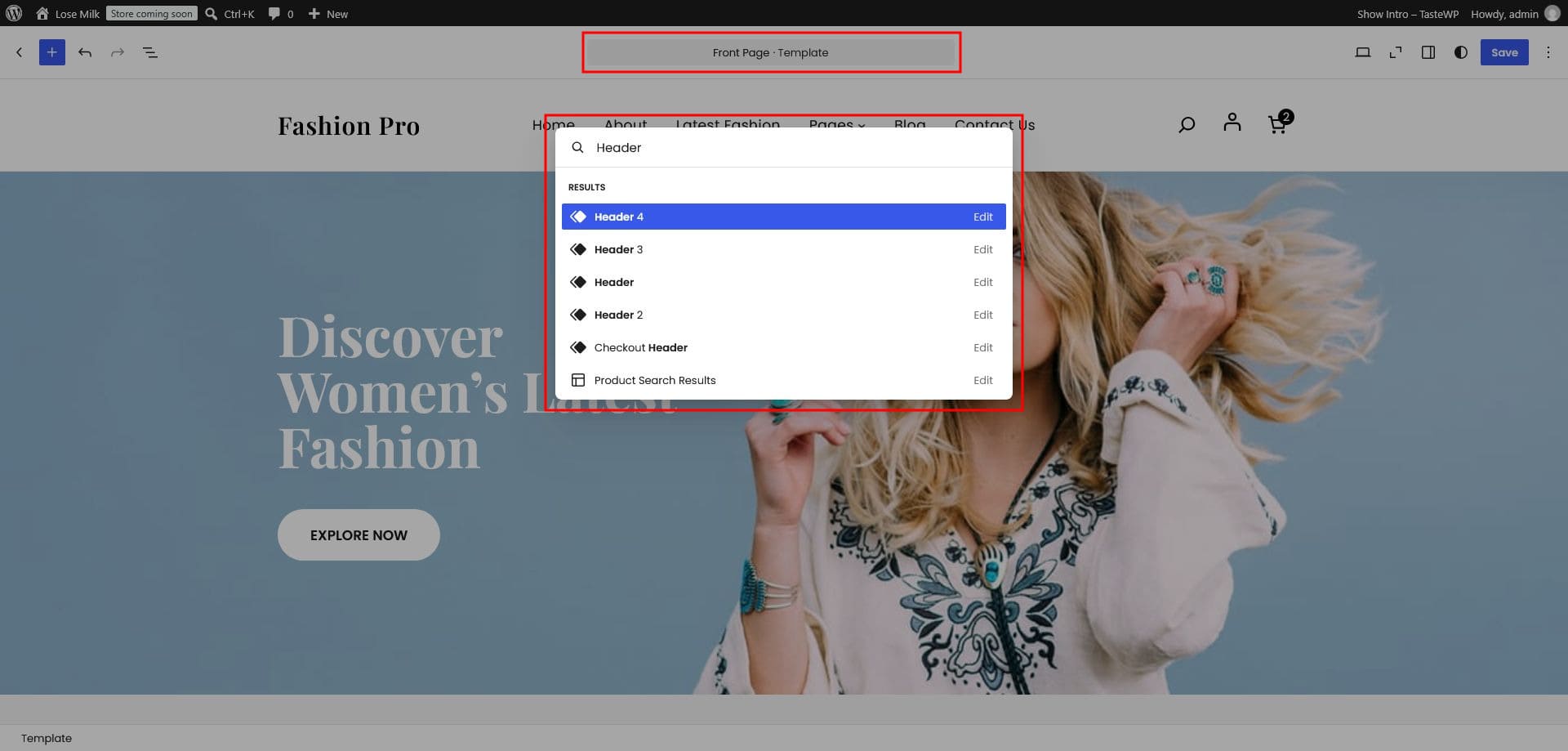
- Go to Appearance › Editor.
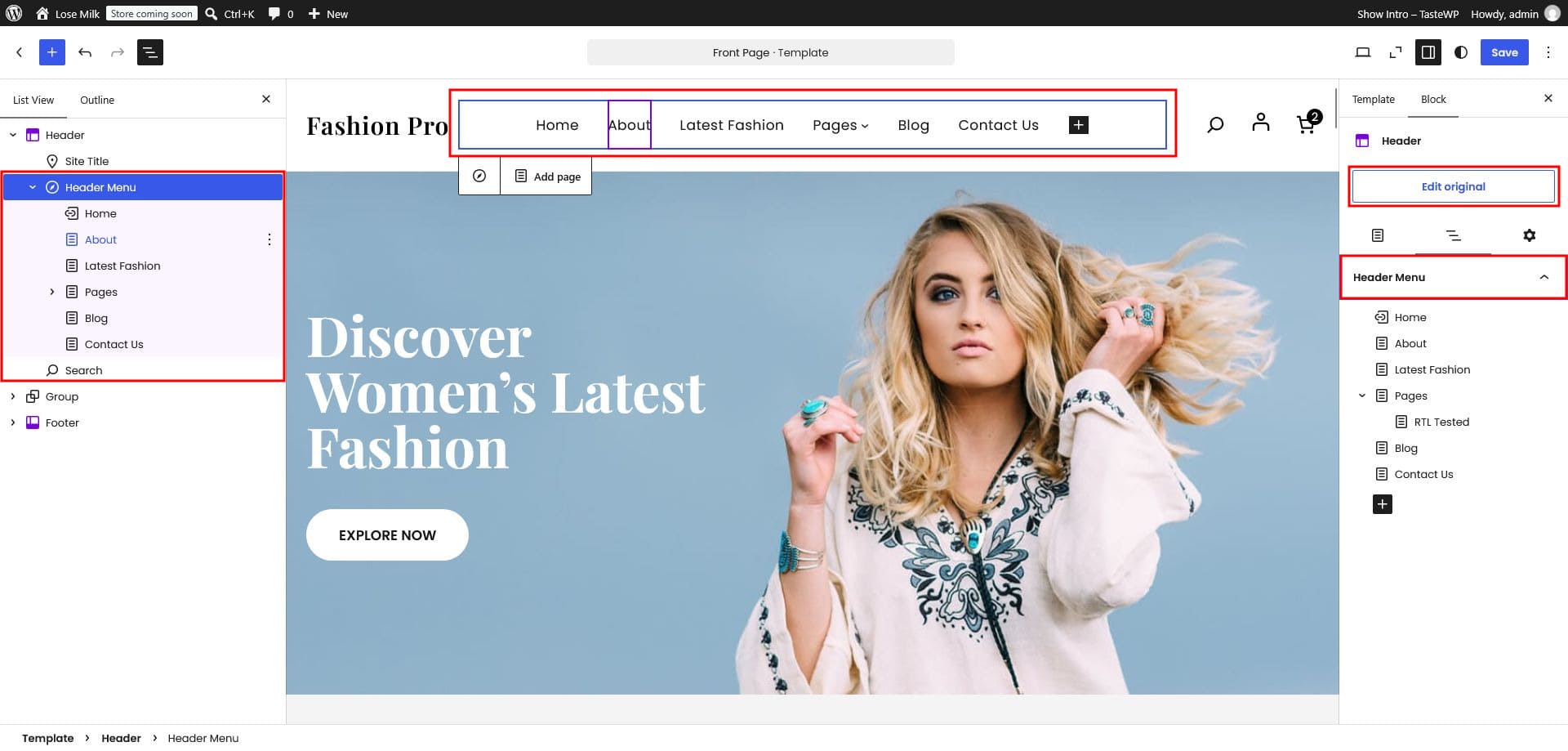
- Click Front Page at the top, then search the theme patterns in the popup.
- Open Patterns › Template Parts and click Header or Footer to edit.
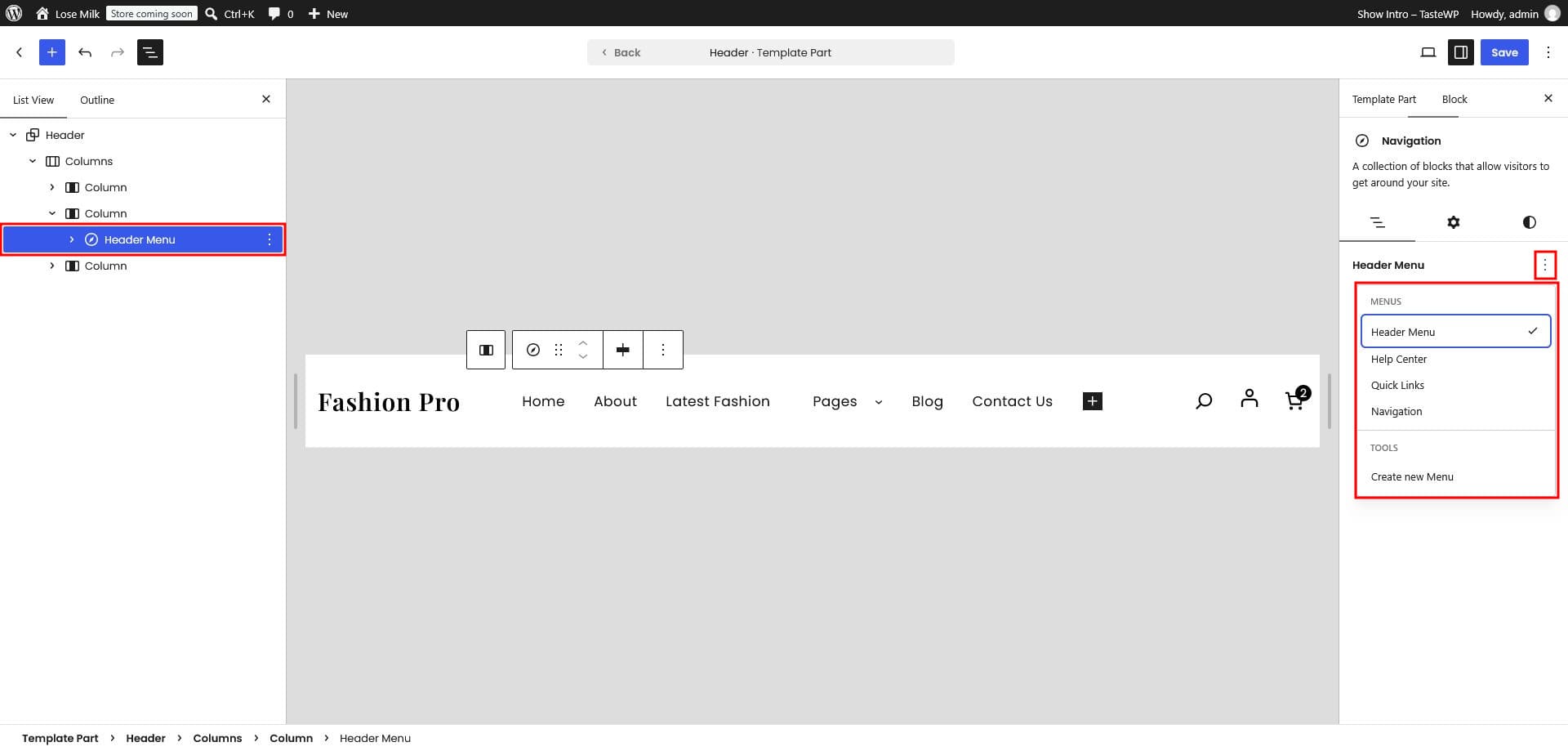
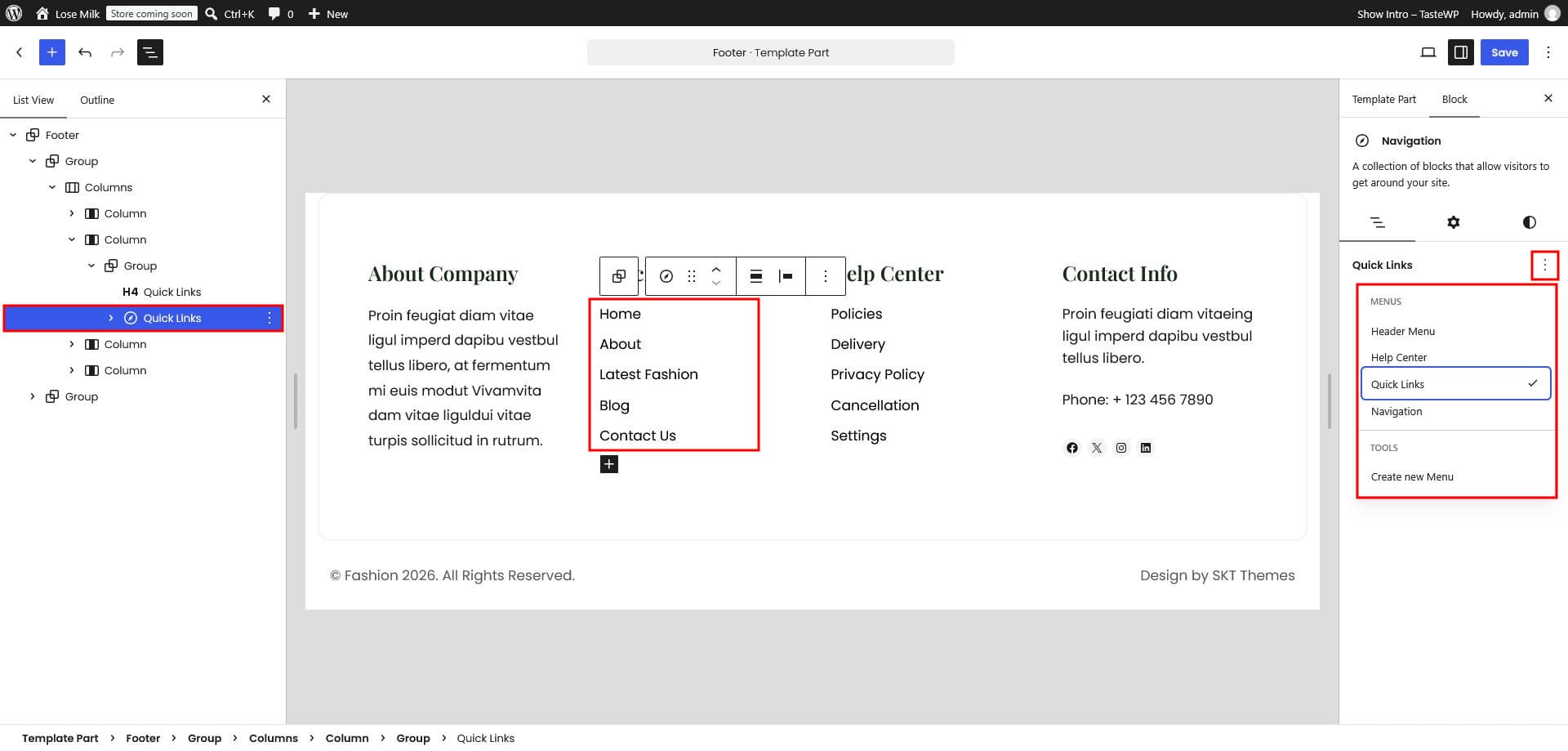
Set header & footer navigation
Change the header or footer layout
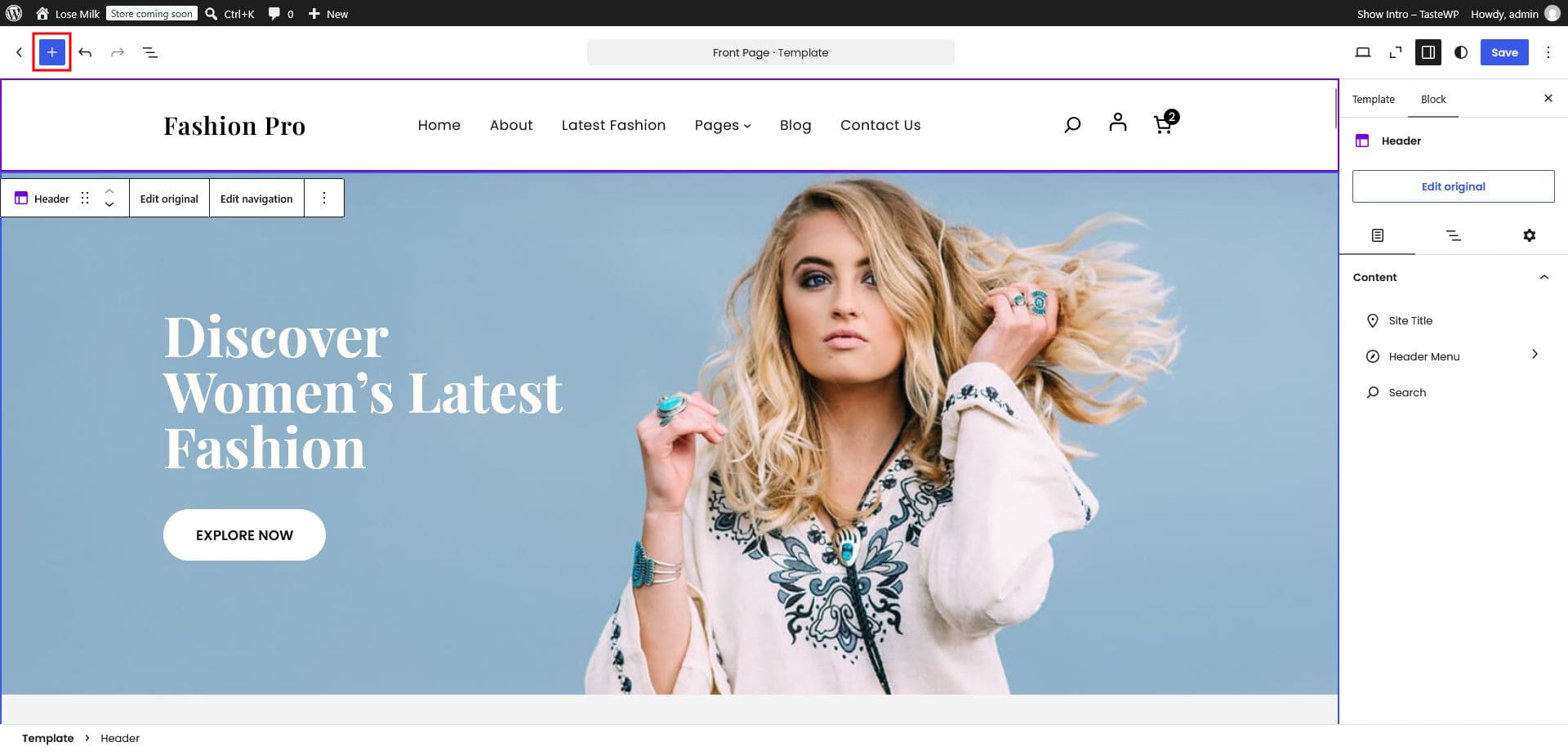
- Open Appearance › Editor and edit the Header or Footer template part (as above).
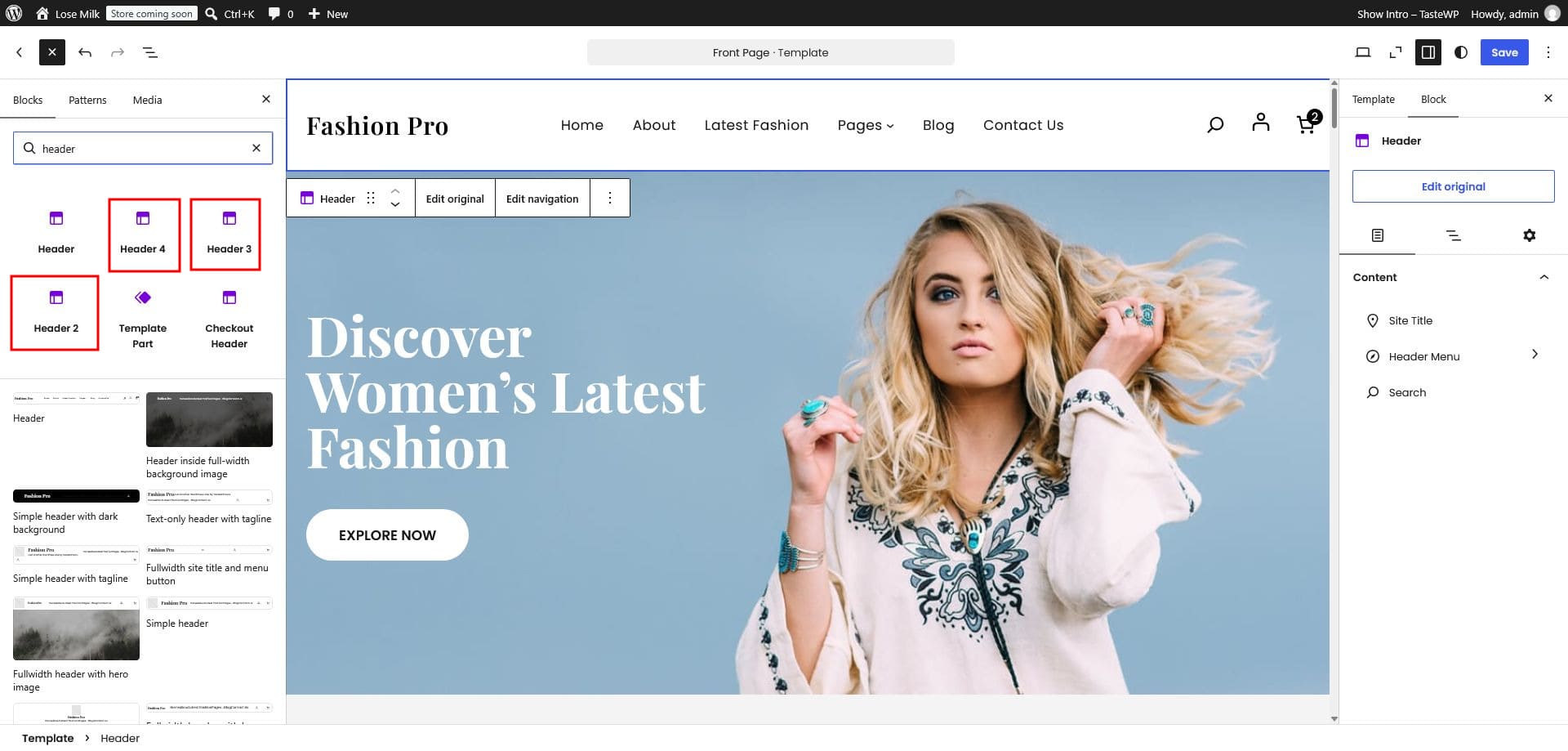
- Click the Plus (+) icon and type header to see all four header layout blocks.
- Click a layout — for example Header 3 — to add it to the editor.
- Remove the old header block, then save.
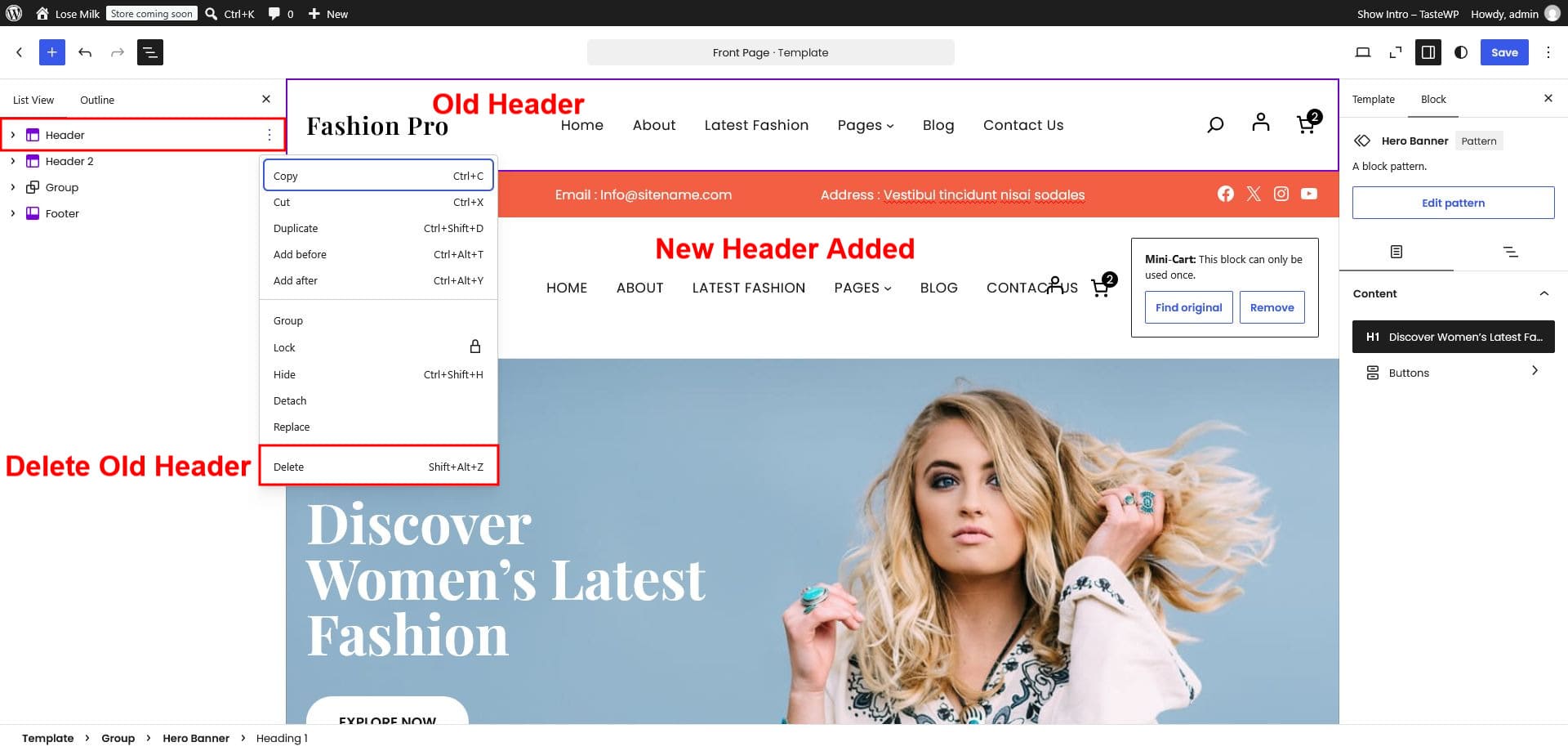
To change the footer layout, follow the same steps and search for footer instead.
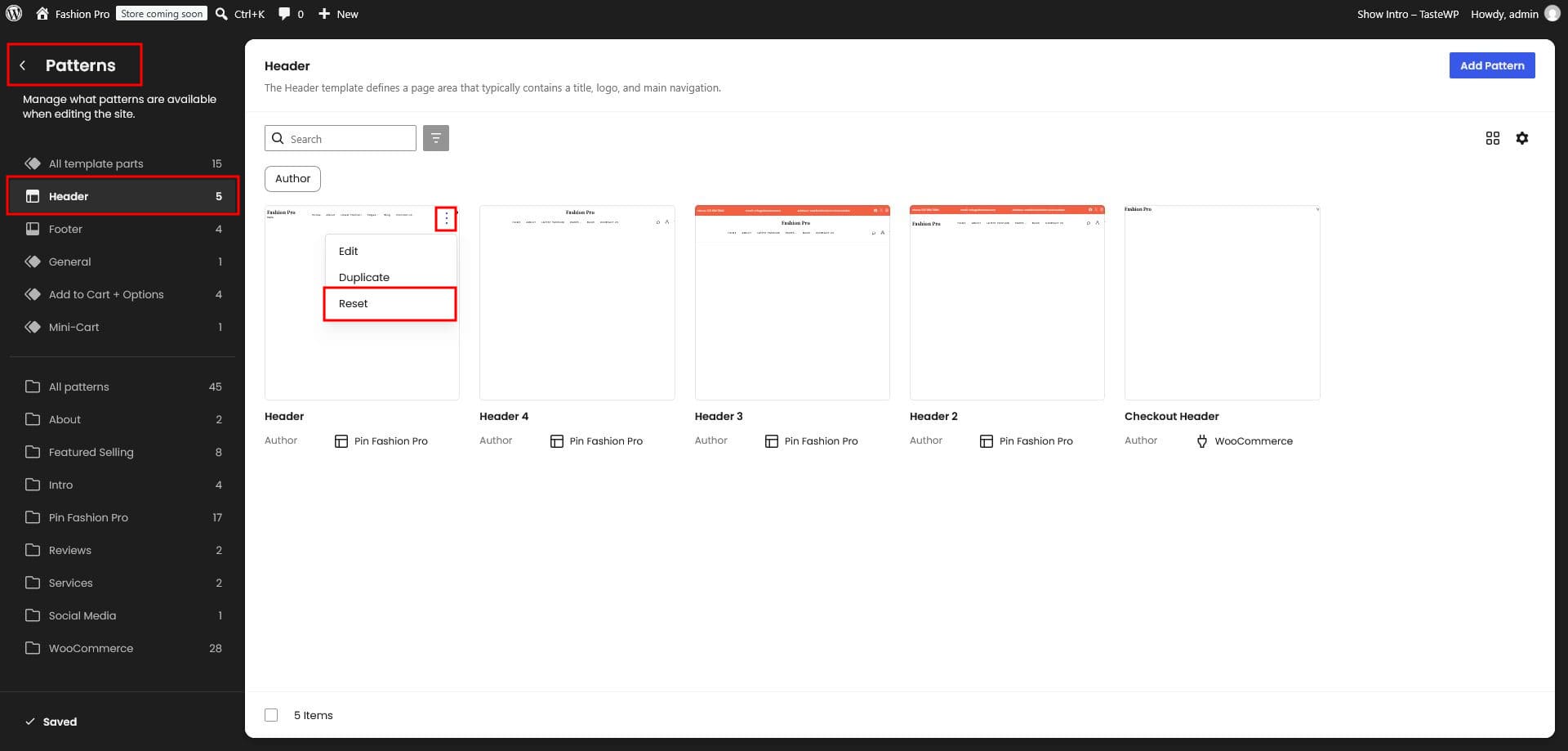
Reset templates
To restore a template to its default, click the three-dot menu and choose Reset.
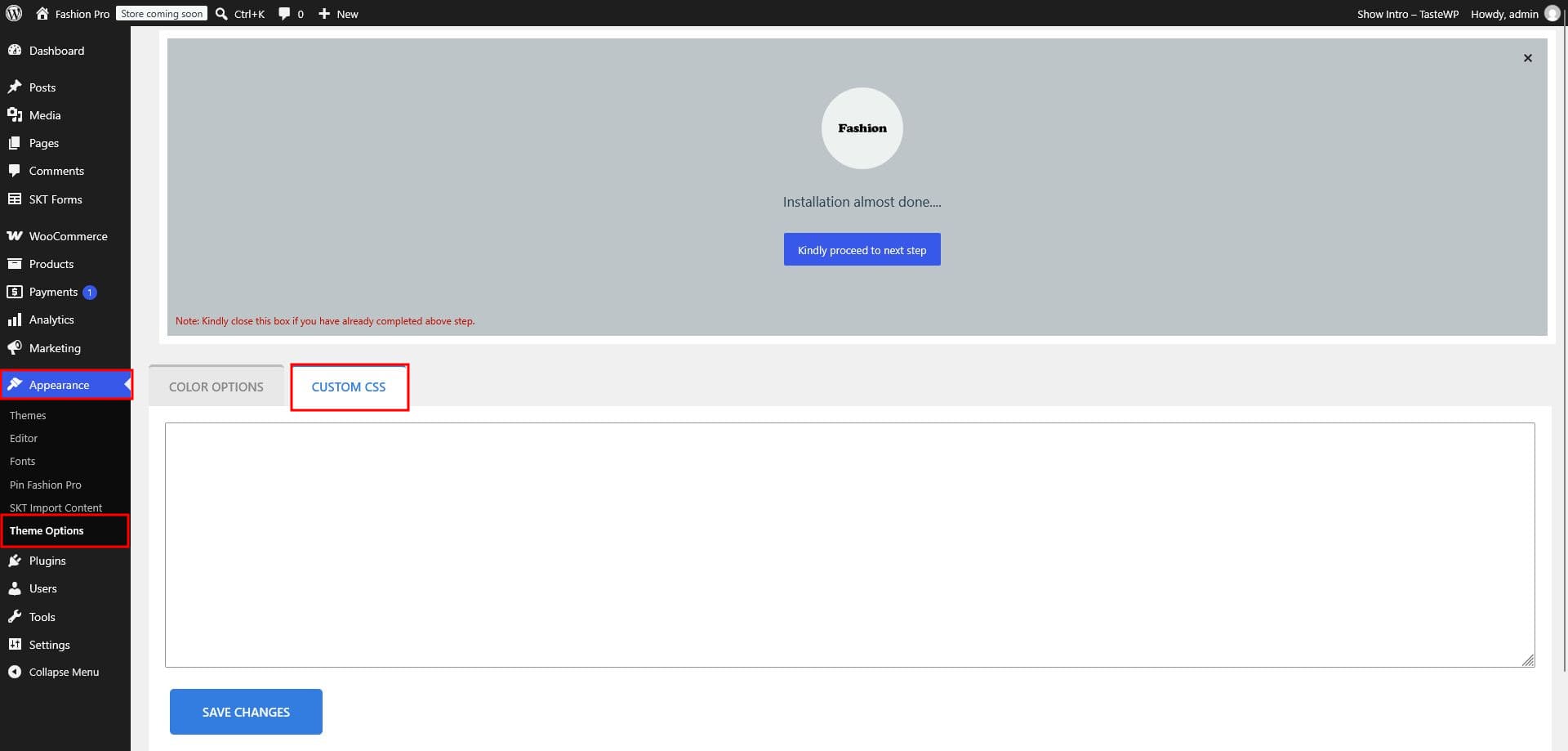
Color options & custom CSS
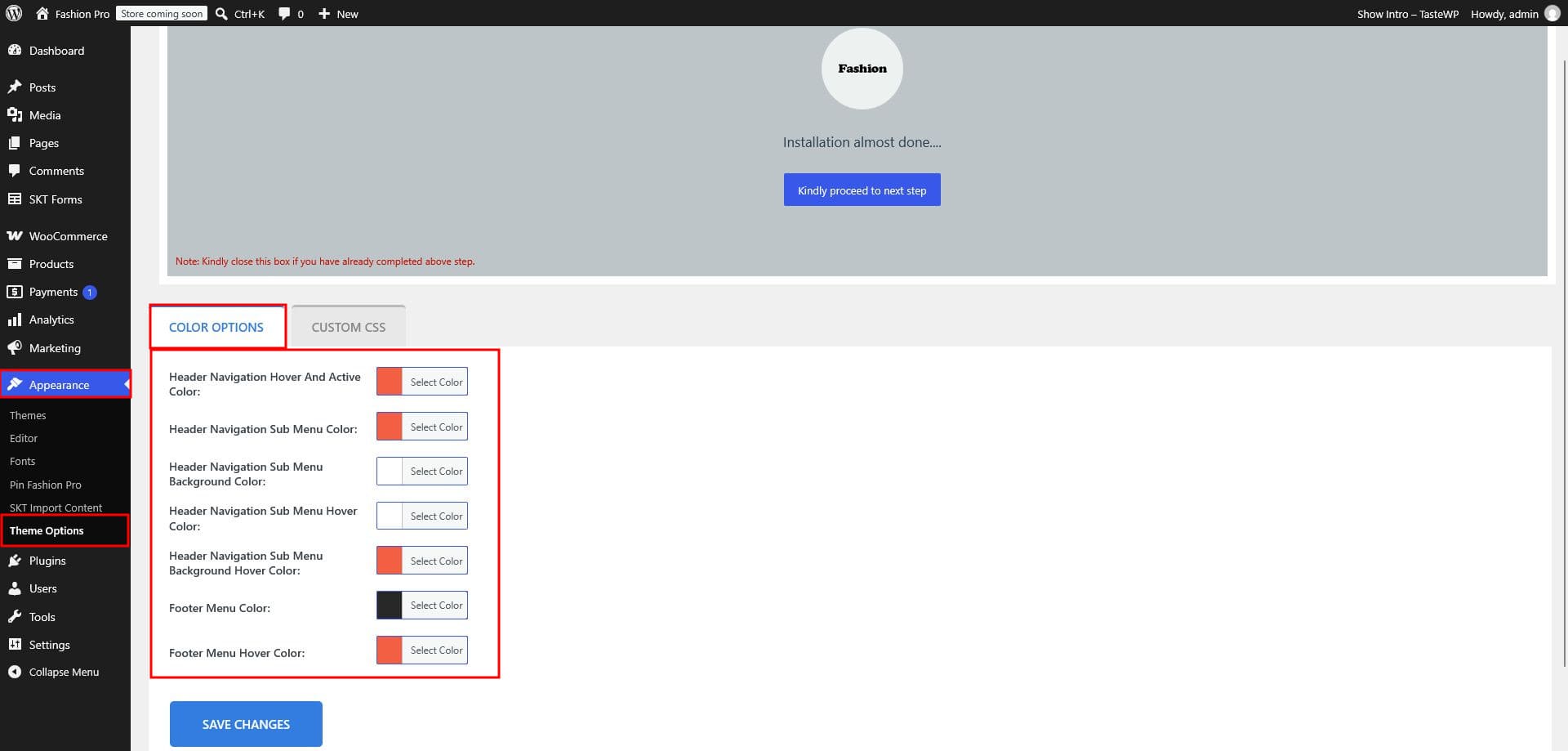
Color options
These colors can be adjusted from the theme's color settings:
- Header navigation hover & active color
- Header submenu color and background color
- Header submenu hover color and background hover color
- Footer menu color and hover color
Custom CSS
Add your own CSS in the custom CSS field to fine-tune any part of the design.
Home patterns
- Click the Plus (+) icon and open the Patterns tab.
- Select Pin Fashion Pro from the left to see the home patterns.
Color variation
- Go to Appearance › Editor › Styles.
- Pick a color variation to set a different palette for your theme.